
Download Turf Tank App and Robot Updates

App software updates do not always include a Robot firmware update.
To discover whether a Robot firmware update is present, you must check the tablet’s notifications bar at the top of the tablet screen, or pull down the notifications tray after the Turf Tank Control app update installs.
If a Robot firmware update is available, you will see the file downloading in the notifications bar or tray.
Wait until the download completes before disconnecting from your strong WiFi source!
Download Method
Store the tablet in a location with a strong WiFi signal, such as an office, shop, or shed with a dedicated WiFi connection.
Before heading to the Robot (if the robot is stored somewhere without a strong dedicated WiFi connection) or the field, turn on the tablet.
Open the Turf Tank Control app.
Accept the download of the update.
The app software will download and install first. (See: Successfully Update Turf Tank Software for detailed instructions to update the Turf Tank Control app.)
Once the app has updated, the Robot firmware update, if there is one, will begin in the background.

If your organization has more than one model type of Robot (a Turf Tank Lite and a Turf Tank Two, for example), more than one firmware file will download.
To determine if a Robot firmware update download is in progress, look in the notification bar along the top of the tablet screen or pull down the notification tray from the top of the tablet screen (see images below).
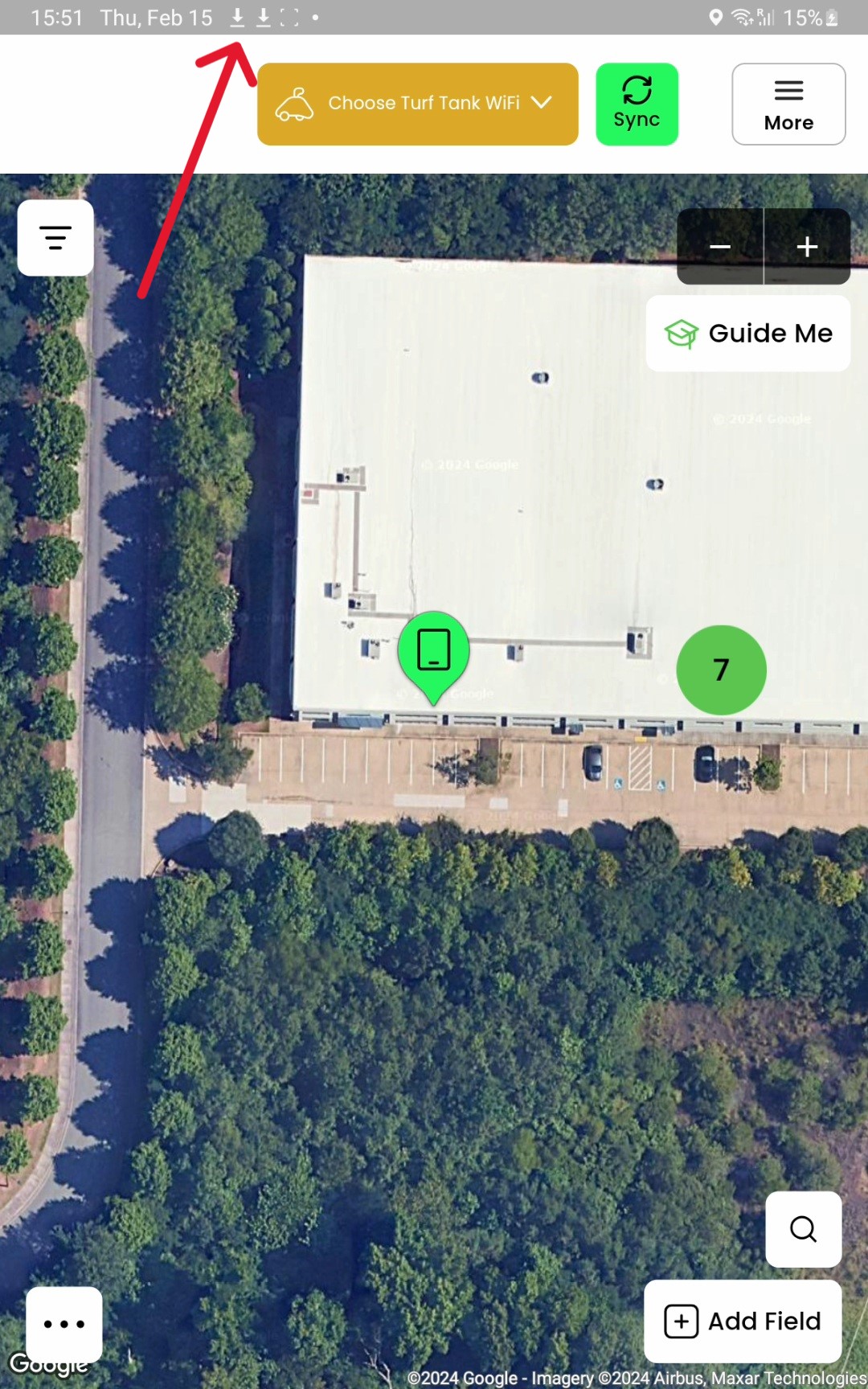 Firmware download icon shown in notification bar. | 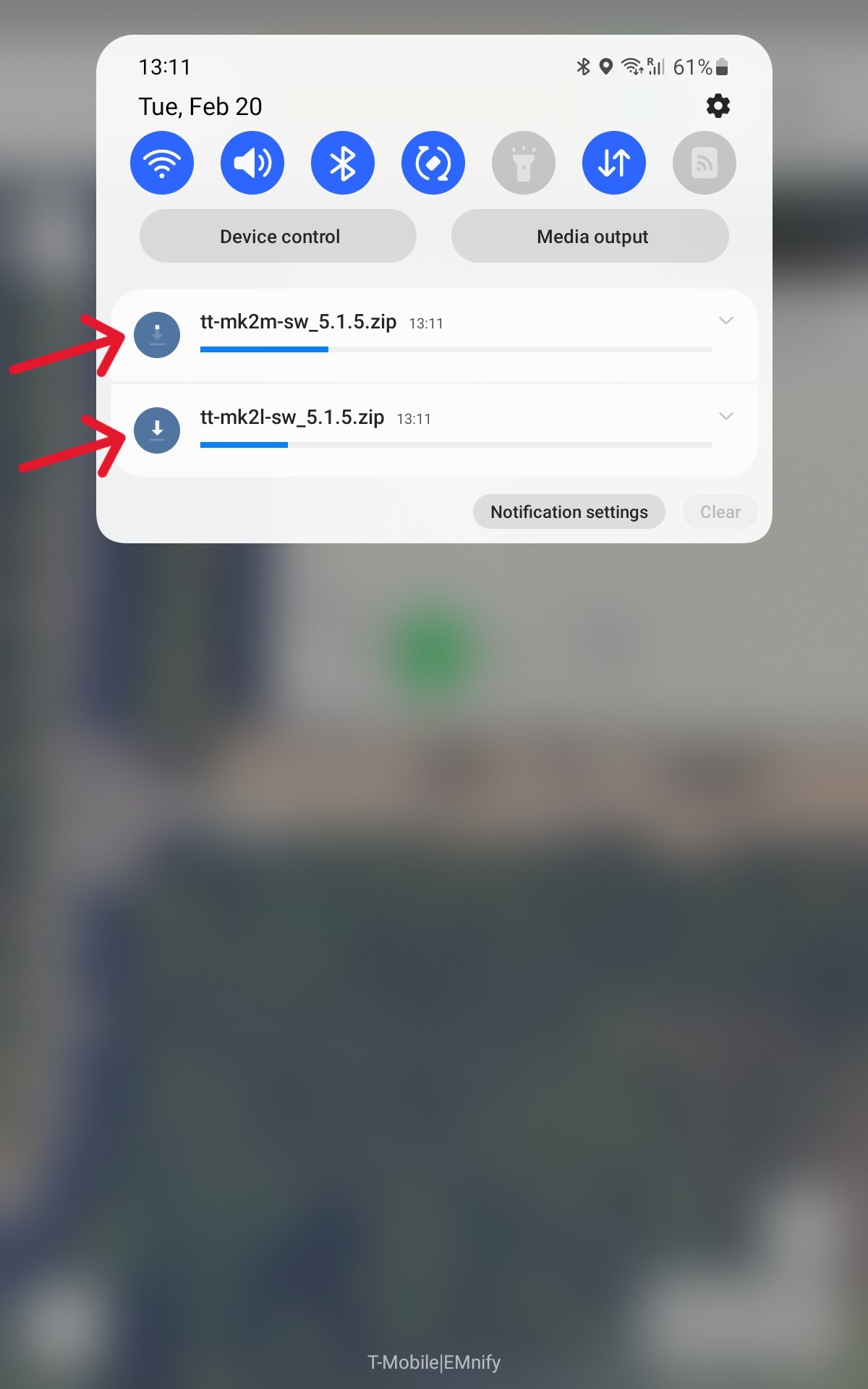 Firmware download progress shown in notification tray. |

The Robot firmware file(s) MUST completely download before you disconnect from your strong WiFi source or the update will fail.
The file message must read “Download Complete,” as in the image below.
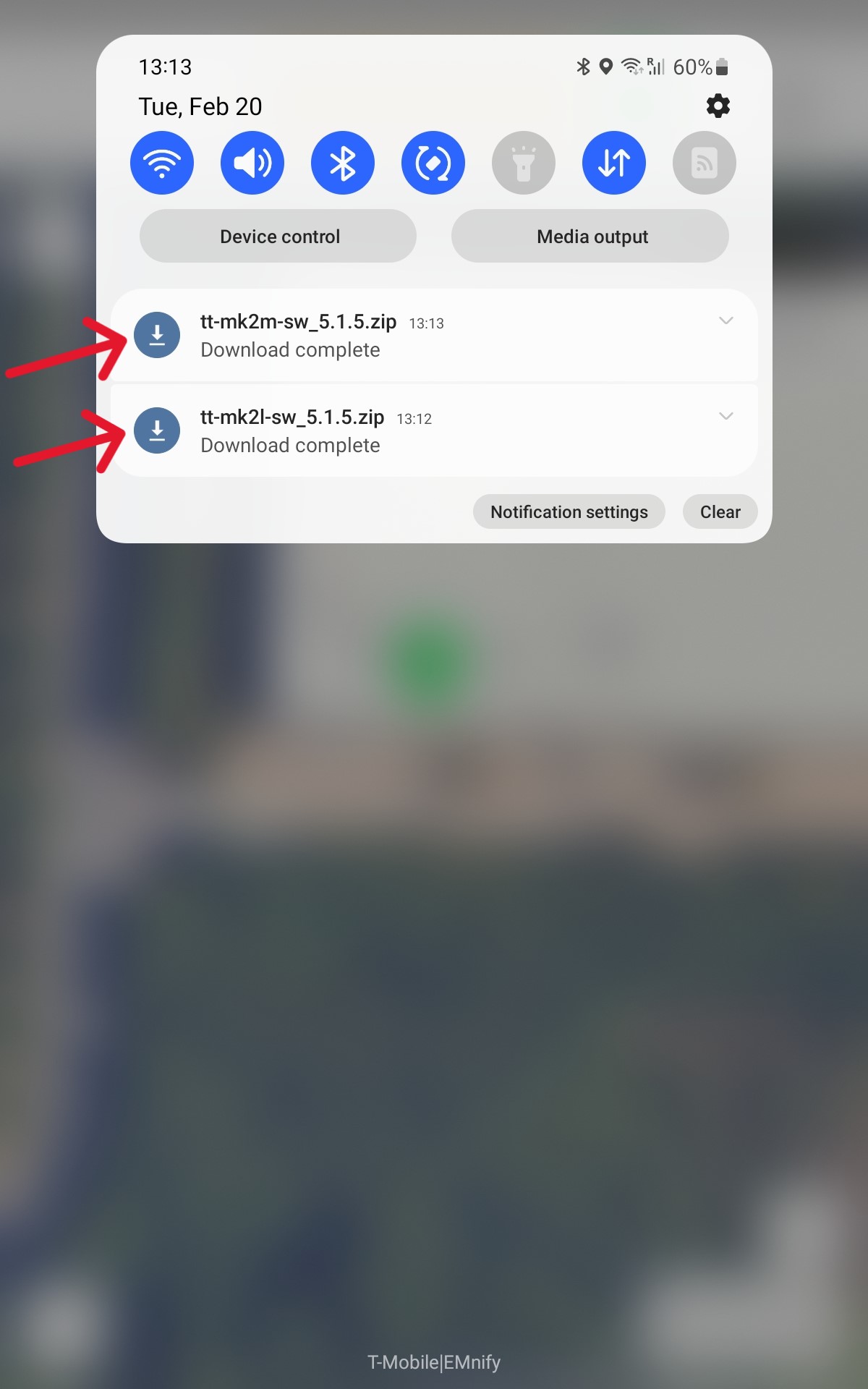
Firmware download complete shown in notification tray.
Once the file(s) say “Download complete,” you can disconnect from the strong WiFi source, connect to your Robot, and install the updates to the Robot firmware.
See Update Robot Firmware: Turf Tank Two and Lite for full installation instructions.
While the Robot firmware is downloading in the background, you can use the Turf Tank Control app to explore the new updates or create and edit fields.