
Placing a Logo on a Field Plan (Turf Tank Control App)
Submitted by @a user
Centered Logo
*This example uses an 11v11 soccer field plan, but the process is the same for any field plan you want to place a center logo into.
The key to perfect logo placement is to create your logo as an element of your existing field plan. Add a logo to your field after you have created all the other elements. The logo will appear exactly in the center.
You can still paint your field plan without the logo. Since you choose which elements of a plan to paint or not paint, you can easily turn the logo off.
Select your desired field plan to add the logo to.
Tap
EDIT.Tap the arrow (>) next to the field name (11v11 in this example)
Select “
+ ADD ELEMENT."Tap
LOGO.Tap the name of the desired logo so it is highlighted in green.
The selected logo image appears to the right of the highlighted name.
Long-press the image until the logo appears on the field plan image.
Tap the green
SAVEbutton in the top-left corner.
https://drive.google.com/file/d/1F96ptwBE51eGAceKoDST7BnTr4xkcETq/view?usp=drive_link
Adjusting the Orientation of the Logo (Two Methods)
From the toolbar along the top of the Editor view, select
ROTATE.Use the arrows at the bottom of the screen to spin the logo a certain number of degrees in either direction. Ninety (90) degrees is the default.
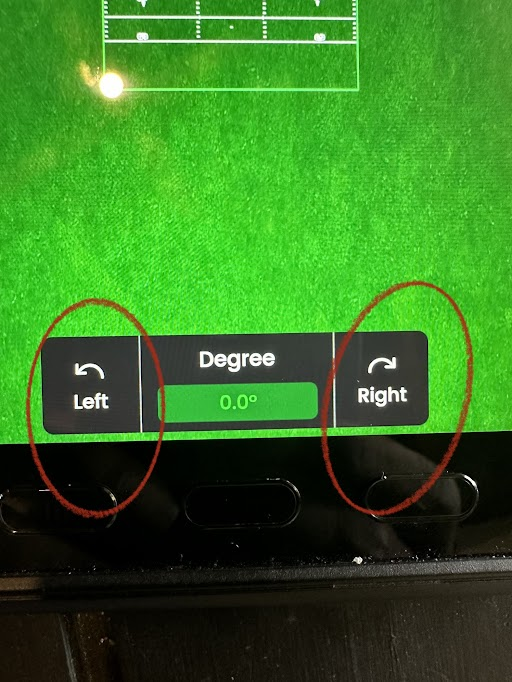
The Degree Rotation Tool. If left at 0, each arrow tap rotates the logo by 90° turns.
Tap the green
SAVEbutton in the top-left corner.
OR
From the toolbar along the top of the Editor view, select
ROTATE.Drag the black directional circles that appear on the logo to rotate it to it face your desired direction.
Tap the green
SAVEbutton in the top-left corner.