
Connect App to Robot WiFi

The Robot must be turned on before the WiFi connection can be established.
The Turf Tank App cannot control the Robot until the WiFi connection is established.
On the Tablet:
1. Pull the Android Quick Settings menu down from top of screen.
2. Tap Connections.
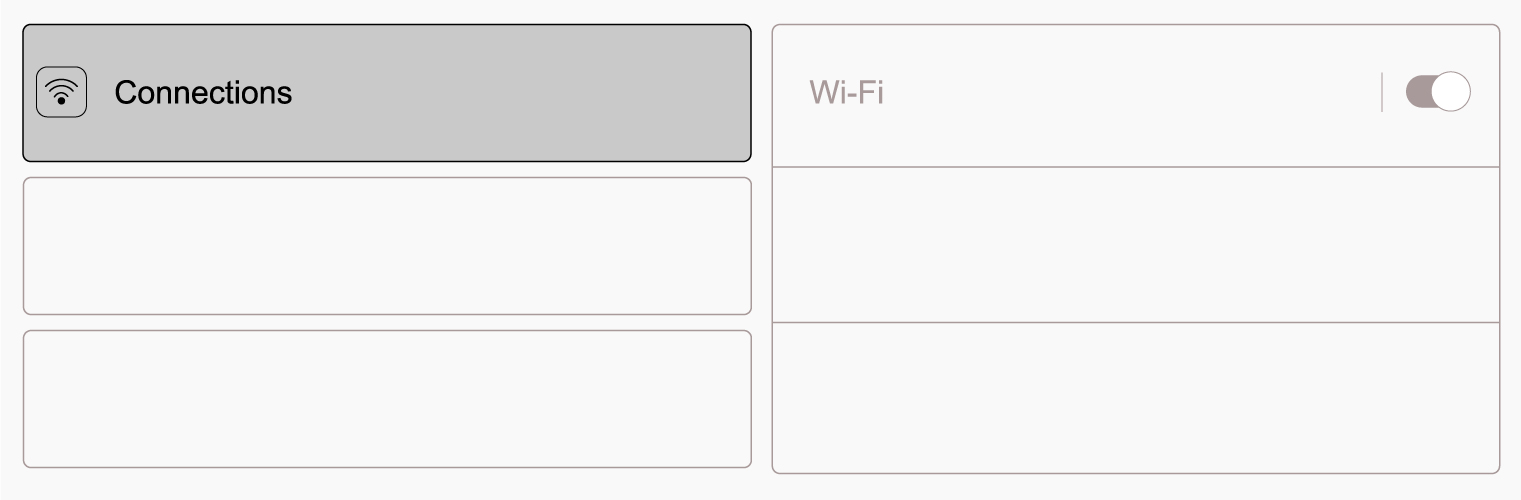
3. Select WiFi.
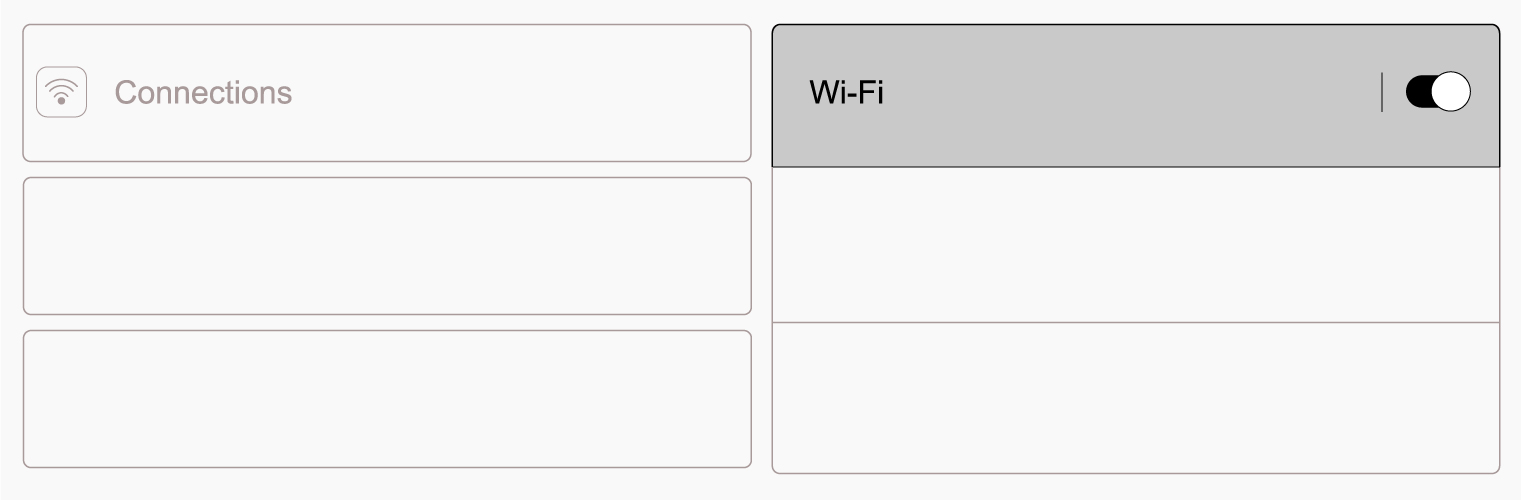
3. Make sure the Tablet’s WiFi is turned on.
4. Choose the Robot's WiFi network (the last four characters of the Serial Number found on the Robot’s ID Tag) from the list of Available Networks.
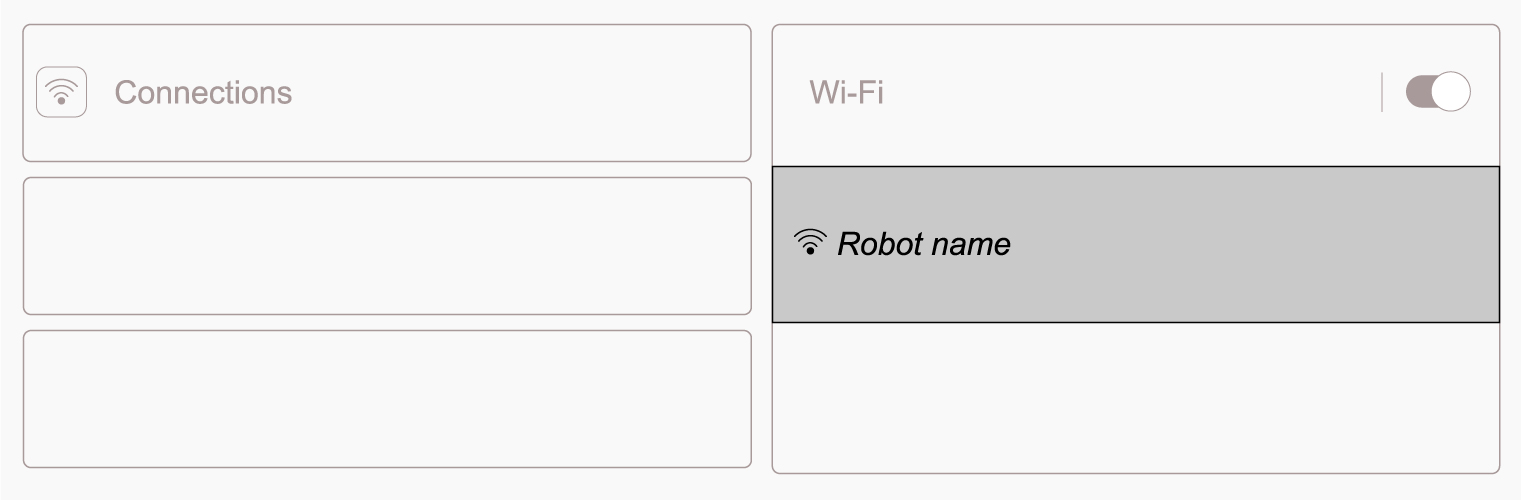
5. Enter the Password as listed on the Robot's ID Tag.

You may need to swipe down to refresh the list to see the Robot's WiFi network.
The Turf Tank App will connect to the Robot automatically once the WiFi connection is established.
Connecting to WiFi with the QR Code
Go to WiFi Settings
Pull down menu from top of screen and tap the gear ⚙ icon OR
Pull down menu from top of screen and long press WiFi symbol
Press the small QR scanner icon that appears on the same line as the word WiFi
A camera screen will appear on the Tablet.
Hold the Tablet in front of the ID Tag QR code until it registers.
WiFi app will read the code and connect to the Robot WiFi.