Link the System
Once your components are all set up, it is time to link the Turf Tank System together.
Connecting the Robot to the App
Power on the Tablet.
Open the Tablet’s WiFi Settings.
Connect the Tablet to the Robot’s WiFi network (found on the ID Tag).
Open the Turf Tank App.
Log into the Turf Tank App.
Once the Tablet has connected to the Robot’s WiFi, the App will show the Robot’s name.

Check System Status
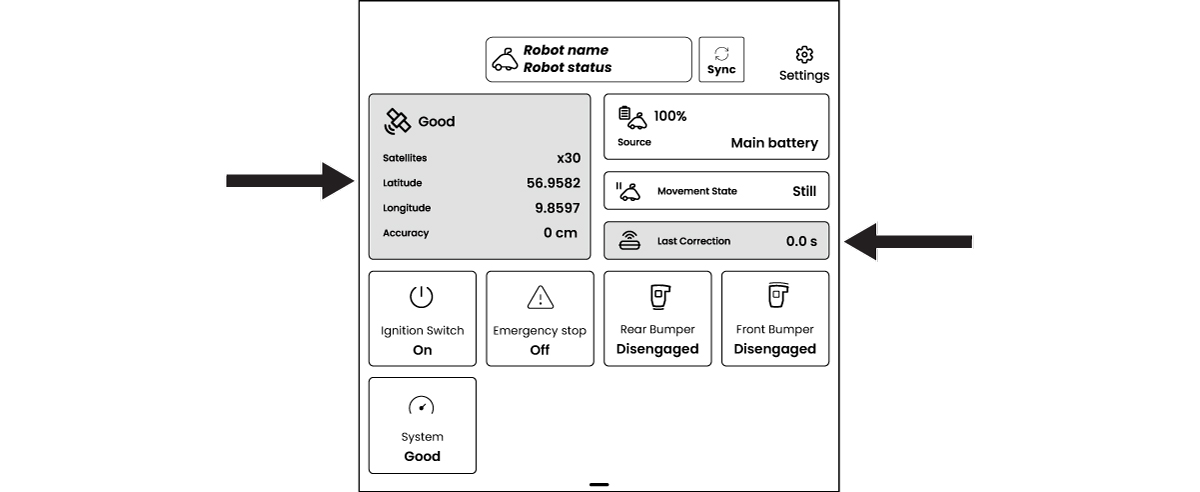
The App Dashboard reports the health of the System’s connections.
Satellite Status: Shows the number of satellites connected to the Robot.
Good: When satellite strength is good, the symbol in the App is green.
Bad: When satellite strength is bad, the symbol in the App is red with an alert symbol.
The number of satellites connected to the Robot is also displayed under the satellite symbol. If the number is high, but the satellite symbol is red, something likely is blocking the Rover.
Last Correction: Shows the last communication the Robot received from the Base Station.