
Operating Modes
The Robot has two Operating Modes:
Autonomous
Manual
Autonomous Mode
Set up and controlled through the Turf Tank Control app, Autonomous Mode paints pre-plotted sports fields, athletic tracks, free-form text, logos, and more. The App allows for extensive customization of fields and layouts.
Please see the App for further instructions and tutorials for Autonomous operation.
Manual Mode
Manual mode lets you drive the Robot to move it onto a field, to reposition it from one field to another, and to move it into or out of storage or transportation. Manual operation can also move the Robot to place precise points for use in the App.
Manual mode cannot be used to paint field plans, though you can manually spray paint in Manual mode, to mark a spot, for example.
Manual mode driving is controlled by two tools:
Joystick
Keypad
Access Manual Mode Tools
Press the Toolbox button on the Home Screen.
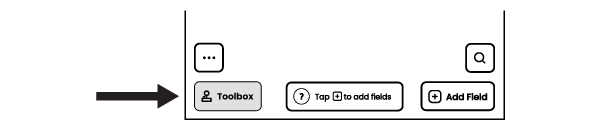
Select the desired manual-control tool.
Joystick
Move the joystick center button in the desired direction (from the Robot’s perspective) to drive the Robot. Release the joystick center button to stop the Robot.


The direction labels on the joystick and the keypad are ALWAYS relative to the Robot, NOT the Operator.
When the FORWARD direction is selected with the keypad or the joystick, the Robot will move in the direction the front of the Robot is facing, no matter which direction the Operator is facing.
Keypad
Tap an arrow key on the keypad to drive the Robot. The Robot will move in the direction of the arrow from the Robot’s perspective.
A single tap on an arrow key will drive the Robot continuously in the direction selected at a slow speed. Tapping the arrow key again will increase the Robot’s speed.
The speed of the Robot can be increased by tapping the arrow key multiple times. A number will appear in the arrow key to indicate how many times you have tapped the key. The speed of the Robot (in meters-per-second or feet-per-second) will be displayed above the keypad.
Decrease speed by tapping the opposite arrow key. Press the STOP button in the center to stop the Robot.

Other Manual Tool Controls
On the Toolbox page, you will also see controls to manually operate the sprayer and the spray discs.
During Autonomous operation, the sprayer and spray discs are deployed automatically, depending upon the settings for the specific layout you are painting.
If you wish to spray a short burst, to mark a spot or test that the sprayer is working, for example, you press the ONCE button.
If you wish to spray a continuous stream, press the START button. The text on the button will change to STOP. To stop the continuous stream, press the STOP button. The text on the button will change back to START.

Press the UP button to manually raise the spray discs. Press the DOWN button to lower the spray discs.