
Place Field Plans on the Map
Plans for what to paint are created in the Turf Tank App. The App provides tutorials and guides to walk you through designing your fields.
Before you can begin to paint, you must orient the plan you will be painting with the Robot and the map in the App.
Plotting Terminology
Three elements make up the painting designs used in the App. Each has a specific terminology:
Blueprint
Plan
Custom Layout
Blueprint
The Blueprint is a non-editable standard design required to create a painting plan, i.e. an American football field, baseball field, parking lot, breast cancer awareness ribbon, etc.
A Blueprint is the master design from which all layouts and plans are made and modified. The Blueprint is based on an official standard for field size and included lines or other features. It also contains directives for the Robot regarding direction of travel and order of line painting.
Plan
Once you have dragged the Blueprint onto the Map, you have a Plan. The image depicted on the Map screen in the App is your Plan.
The Plan begins as a copy of the Blueprint, which you can then modify by changing dimensions, altering the lines that are painted, etc. None of the changes you make to your Plan affect the Blueprint at all.
The Plan is tied to a specific location--that is, your placed Reference Points on the Map, which were determined by the Base Station. When you save your Plan, you have saved the Reference Points, physical location from the Base Station, and the dimensions and included lines of the specific Plan you have designed. You will load this saved Plan whenever you want to paint the same Plan on the same physical field.
Custom Layout
Custom Layout is the saved version of your Plan setup that contains any modifications made to the Blueprint, including dimensions, which lines to paint, the order of painting, and the direction of painting. It DOES NOT include Reference Points or physical location from the Base Station for that particular Plan.
If you would like to save a Plan for use in different locations in the future, you save it as a Custom Layout with any name you choose.

Custom Layout DOES NOT save the Reference Points for a specific location.
You can drag your Custom Layout onto the map and make modifications to it, just as you can with a Blueprint. You can then save the changes to that original Custom Layout or give it a new name to create a new Custom Layout.
Reference Points
Most Plans begin with reference points placed on the map charted by the Robot’s position as determined by the Base Station.
You could place reference points in the App using satellite maps and geographic coordinates, to get a general idea of how layouts will fit into a general space, for example, but they will be imprecise.
Setting the points of the field with the Robot and the Base Station is the only way to ensure accurate, reproducible positioning.
Clear Paths
Place Plans on flat, unobstructed fields.
The Robot needs a clear path to paint the field and to travel outside the boundaries of the field (“transit paths”) to approach the lines it paints.
Always verify the boundaries of Plans and Transit Lines before operating the robot in autonomous mode.
Ensure that Plans and Transit Lines do not unintentionally cross public pathways, hazards, or other obstructions.
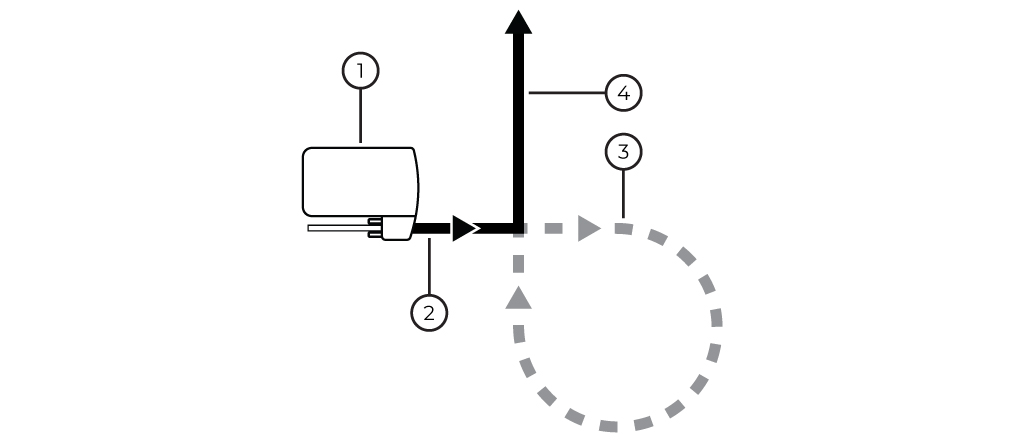
Robot
Painting Field lines (Sprayer ON)
Transit paths (Sprayer OFF)
Painting Field lines (Sprayer ON)