
Check Robot Battery Status
Robot Battery status is displayed:
On the Battery Charger
On the Battery
In the Turf Tank App
Robot Battery Charger Indicator Lights:
Green: Battery is fully charged.
Yellow: Charging level.
Orange: Charger is powered on.
Red: Charge level is low or battery is bad.
Flashing Red: Battery connected in the wrong polarity.

You must unplug the Robot Battery Charger from the wall after charging one battery. Plug it in again to charge another battery.
Unplugging resets the charger’s indicator lights.
If you attempt to charge another battery without first unplugging the charger from the wall, you will see a false Fully Charged indicator light.
Checking Battery Status on the Battery
The Battery has indicator lights on the body to display capacity. Press the lightning button to view the capacity.
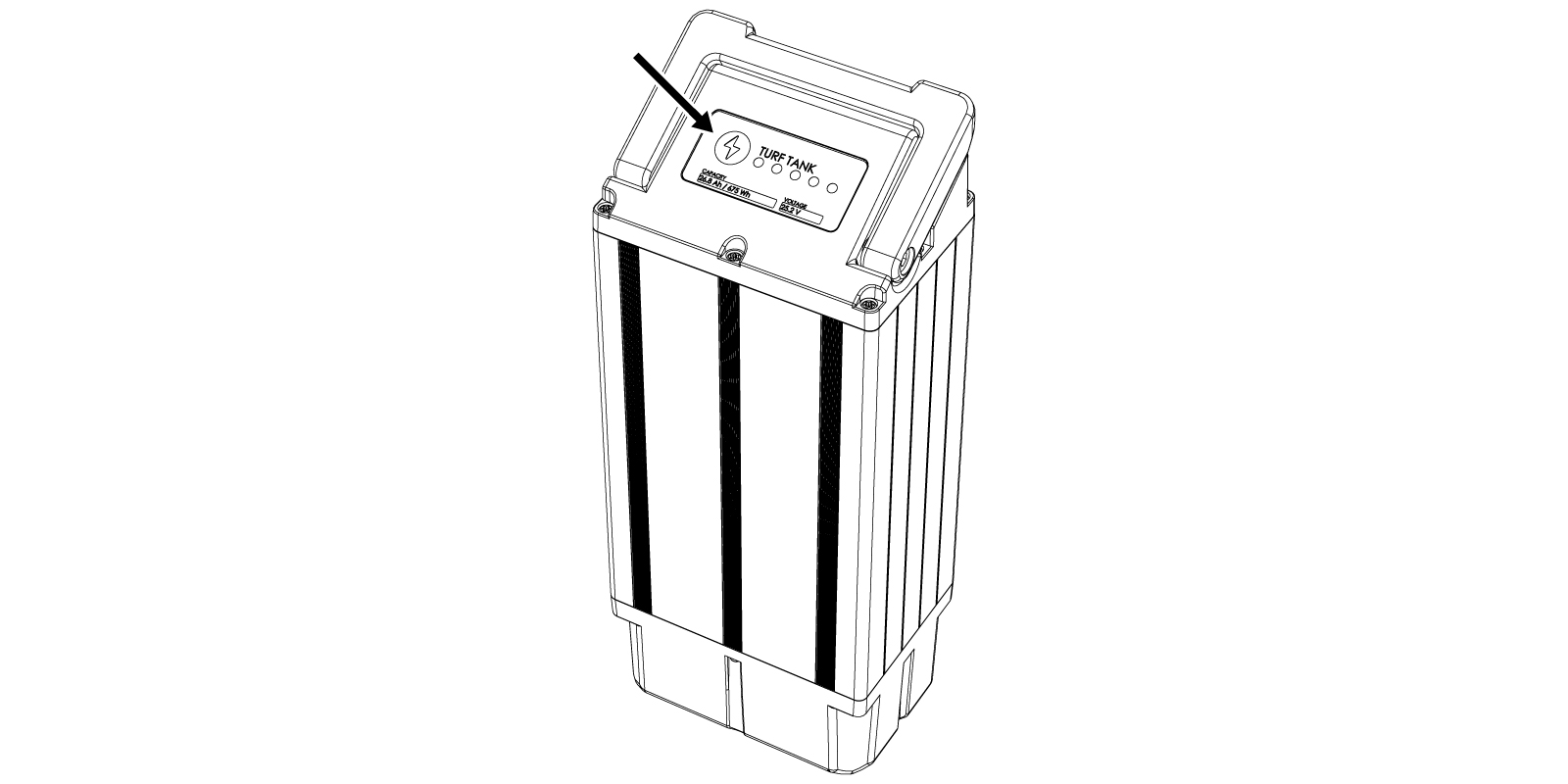
Robot Battery Indicator Lights:
Green: Battery is fully charged.
Red: Battery is charging.
No light: Charging Block is not connected to a Power Outlet or is not working properly - faulty block and/or cable.
Battery Display Panel
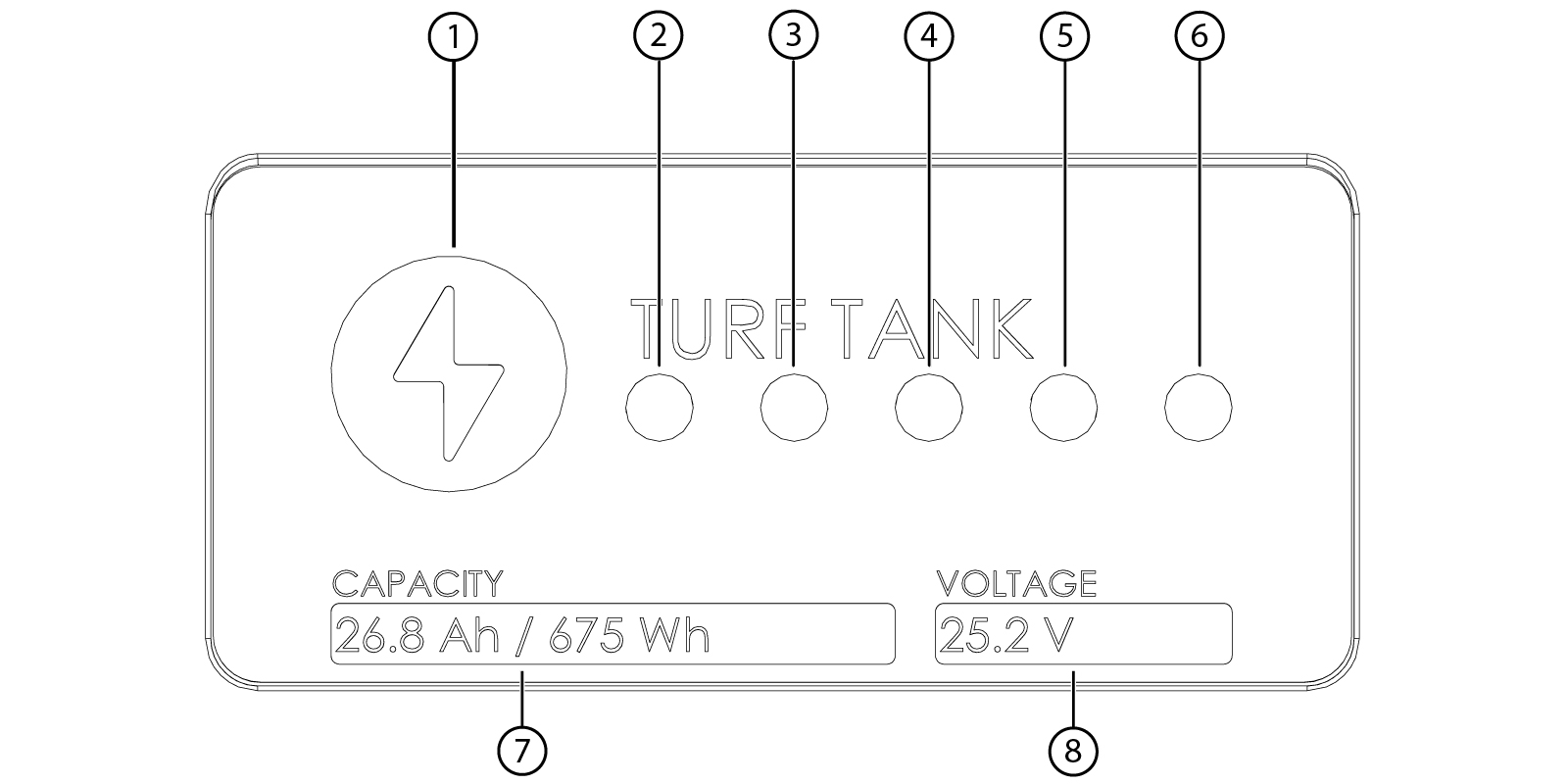
Battery Status Button
0-20%
20-40%
40-60%
60-80%
80-100%
Battery Capacity Rating
Battery Voltage Rating
Checking Battery Status in the Turf Tank App

To check Battery status in the Turf Tank App:
Battery MUST BE inserted into the Robot.
Robot MUST BE turned on.
App MUST BE connected to Robot.
The App Dashboard displays the charge level of the Robot Battery.
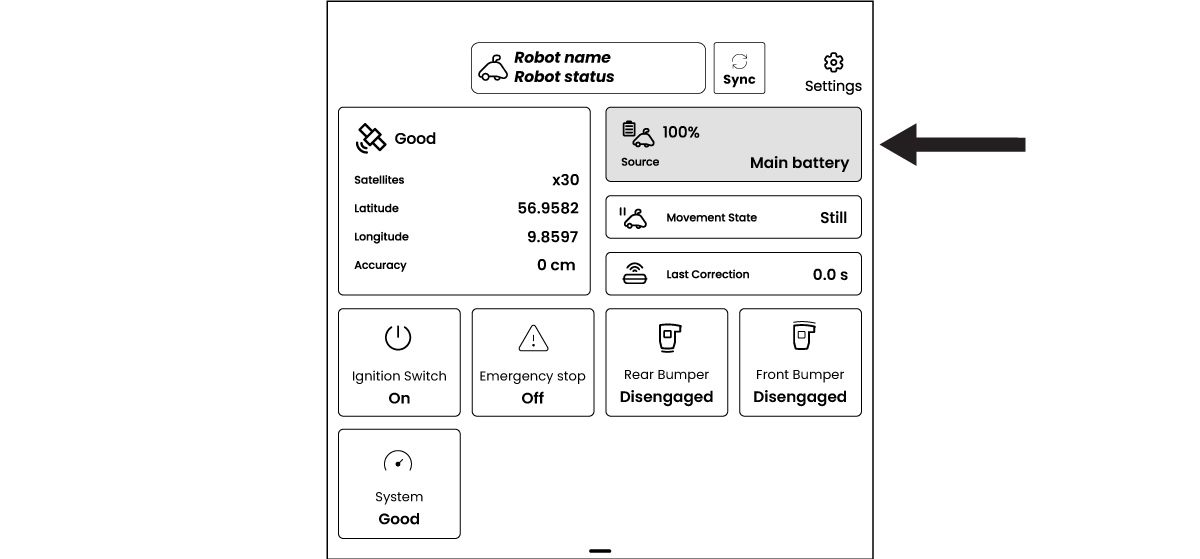

Check Battery status frequently. Swap out any batteries that are at or below 25-percent capacity.
If a Base Station or Robot Battery drains completely, it can cause permanent damage to the device.