
Pause Robot Operation
Pause Operation
You can stop the Robot briefly while it is executing a plan (to change the paint bucket, for example) in two ways: from the Robot control panel or from the Turf Tank Control app’s Job Overview screen.
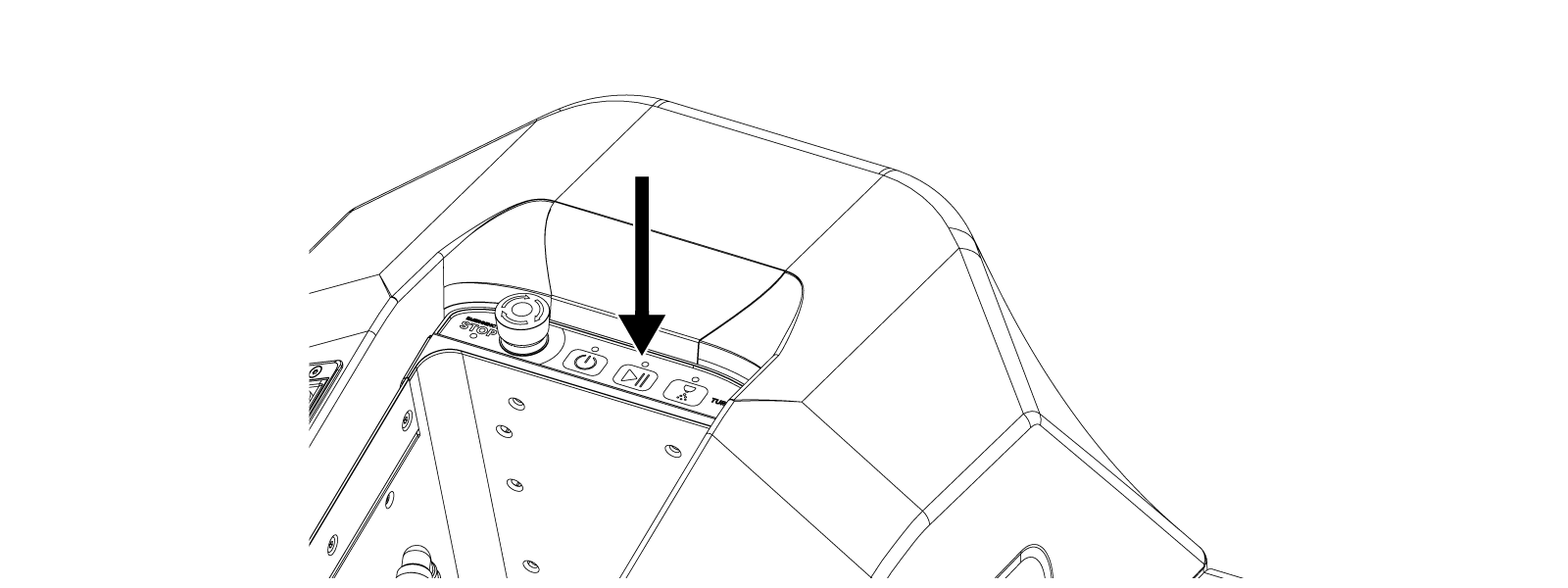
Pause from the Robot Control Panel
Press the Start-Pause button on the control panel to pause the Robot.
The Robot will stop moving and painting.
Pause from the Turf Tank Control App
On the Job Overview screen, tap the PAUSE JOB button.
The Robot will stop moving and painting.

Do not close the app or leave the Job Overview screen while a job is paused, no matter if you stopped the Robot with the control panel button or the pause button in the app.
If you do close the app or leave the Job Overview screen, you will have to re-start the job and skip segments to get back to the point where you paused.
Resume Operation
It does not matter whether you paused the job from the Robot control panel or the App. You can resume operation using either method.
Resume from the Robot Control Panel
Press the Start-Pause button on the control panel.
The Robot will begin driving and executing the plan it was painting from the place that it stopped.
Resume from the Turf Tank Control App
On the Job Overview screen, tap Pause.
The Robot will begin driving and executing the plan it was painting from the place it stopped.