
Successfully Update Turf Tank Software

Updates can contain critical fixes and essential features. It is important to apply the update as soon as possible, ideally, the first time you are informed there is a new version available.
If you must postpone the update, you may do so for only seven days until the app requires the update.
Before you head into the field--from an office, shop, or shed with a strong WiFi signal--turn on the tablet and open the Turf Tank Control app.
| |
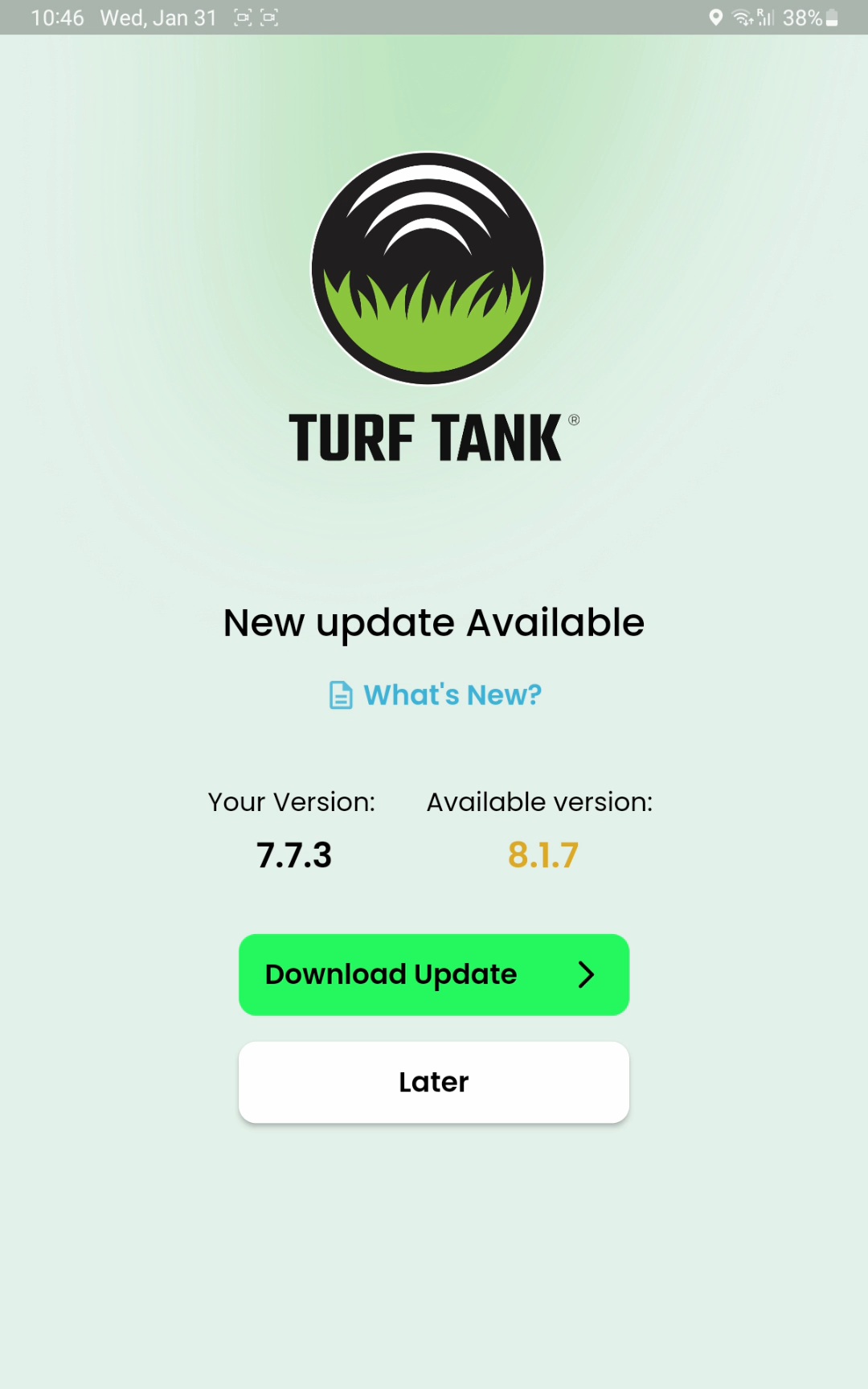 1.1 New Update Available | 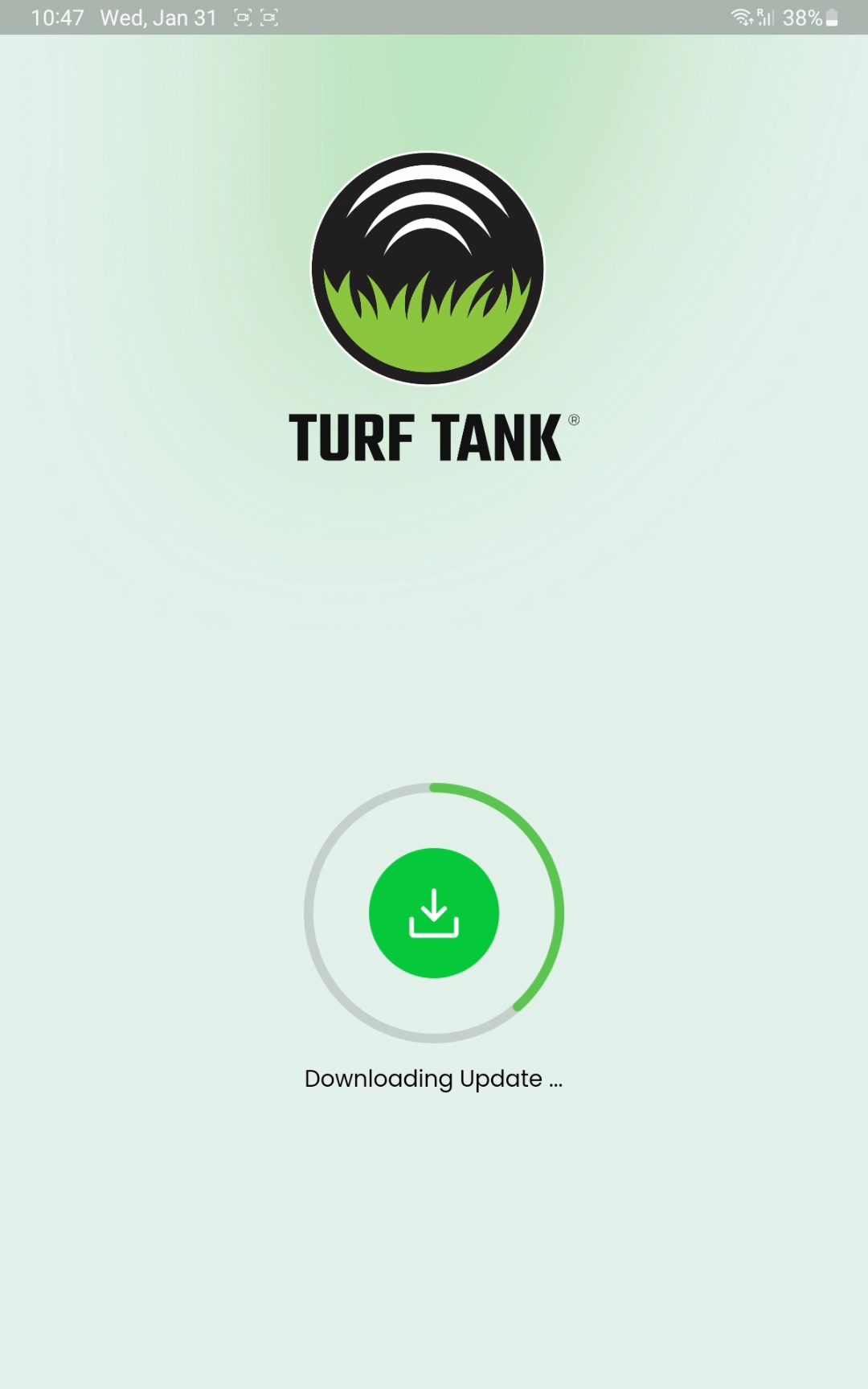 1.2 Downloading Update |
| |
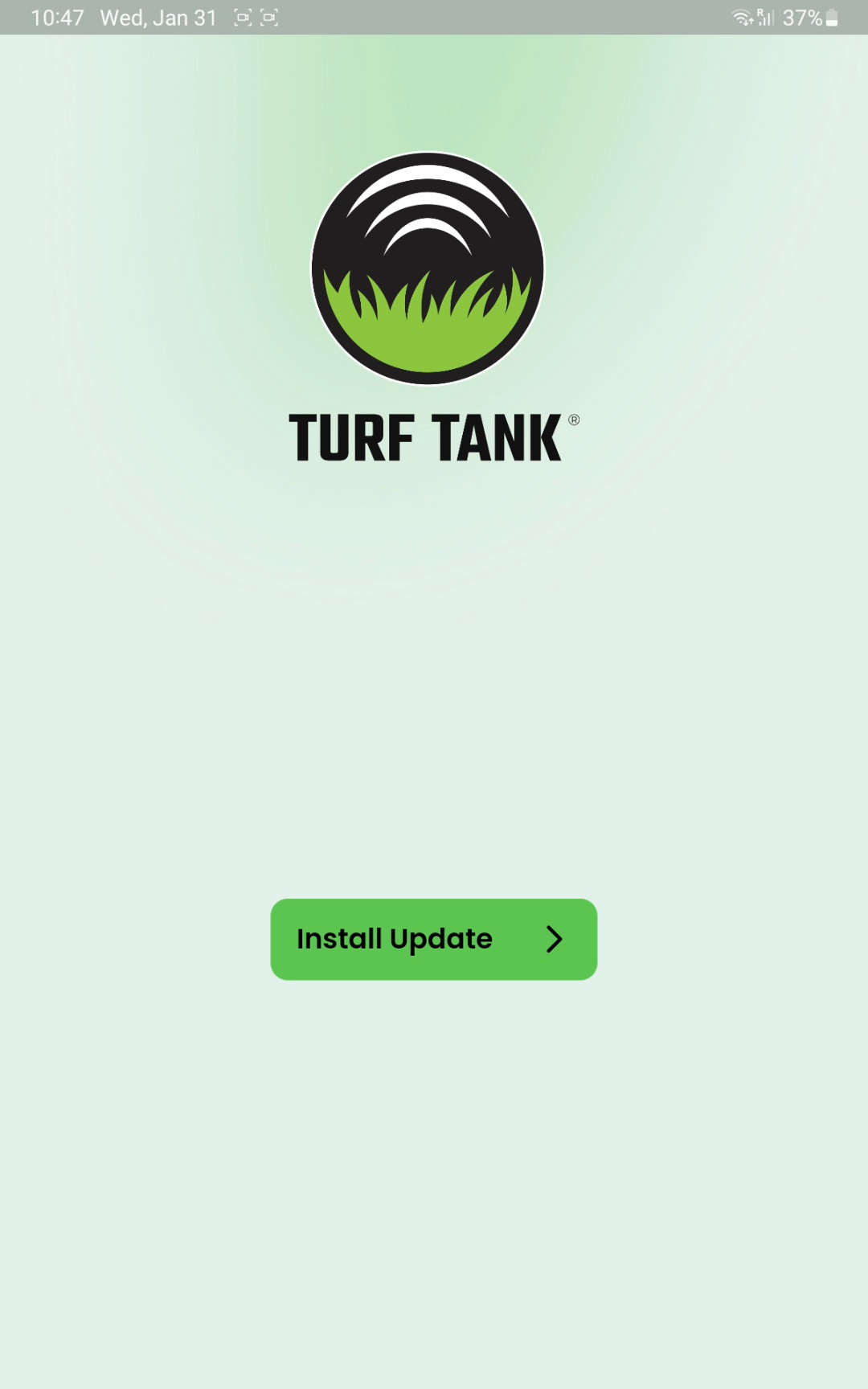 2.1 Tap | 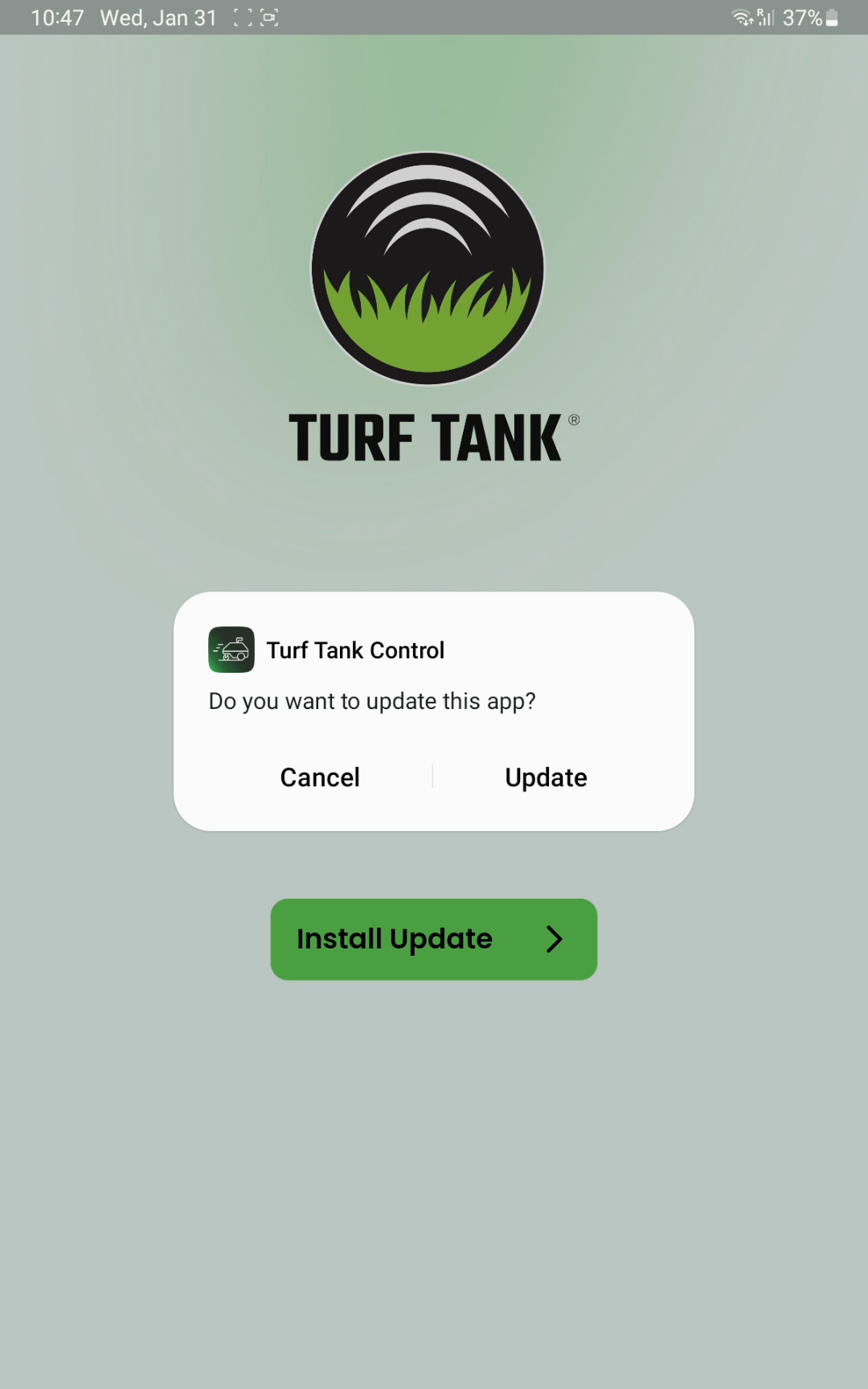 2.2 Tap |
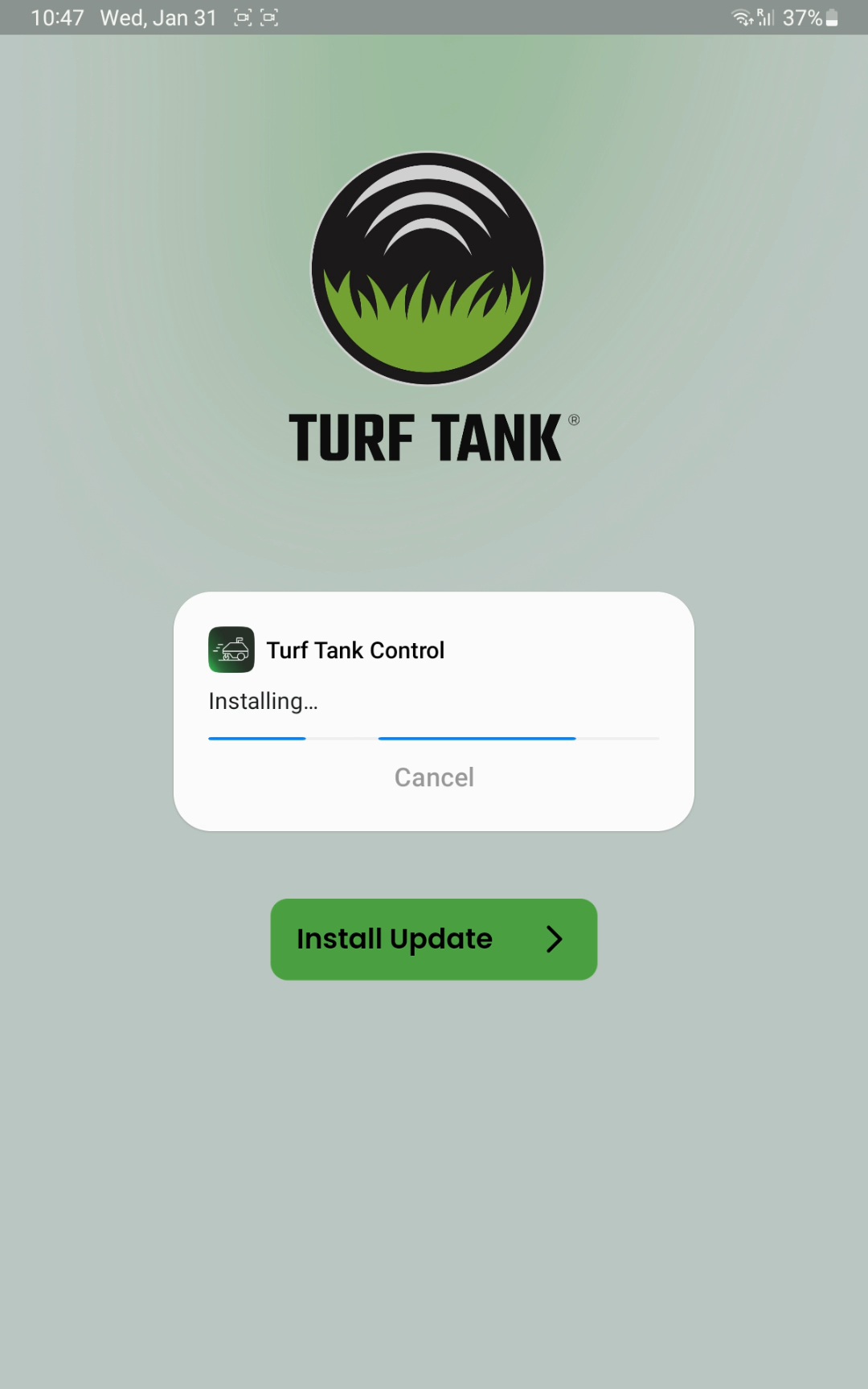 2.3 Wait for the installation to complete | 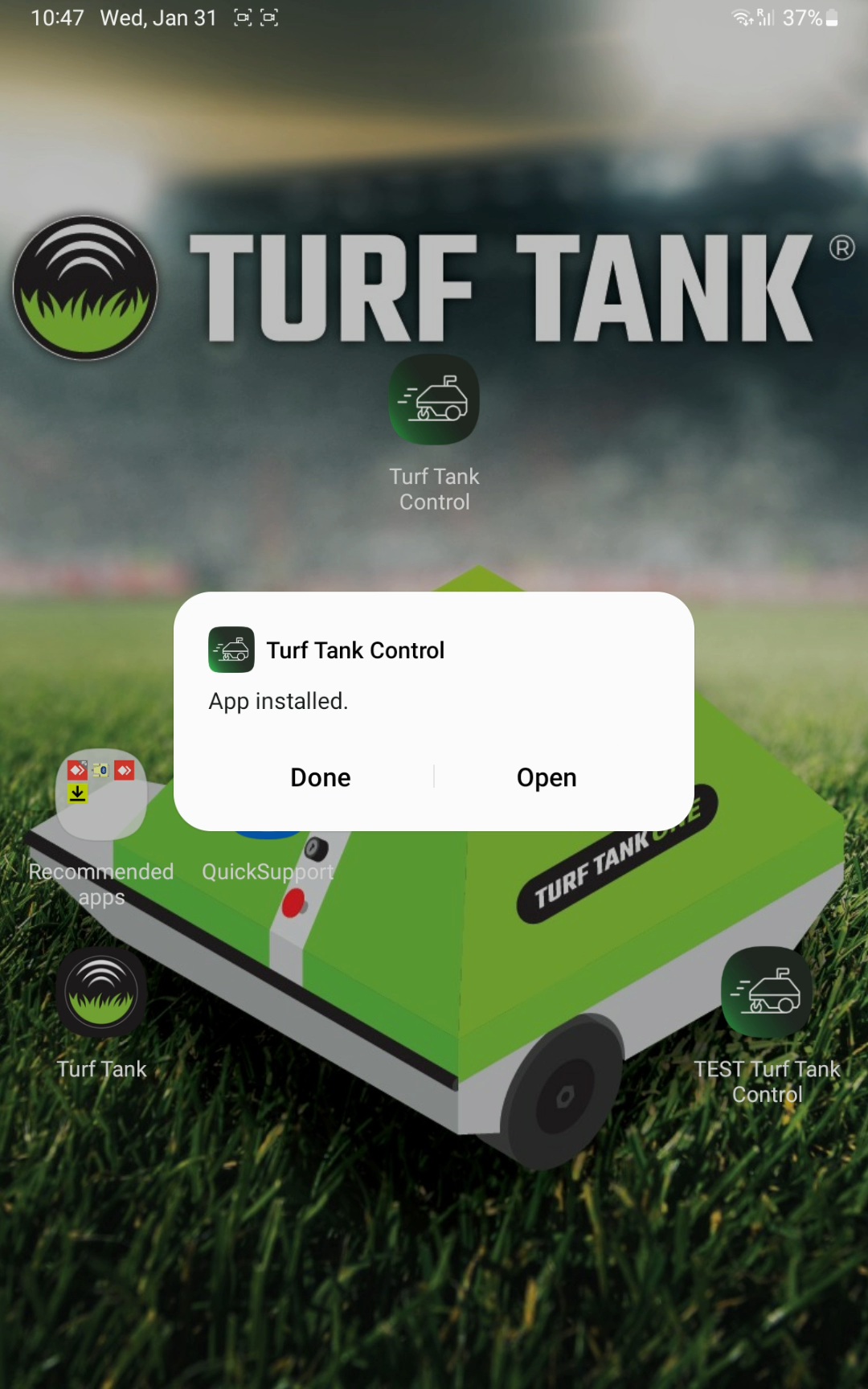 2.4 To open the app, tap |
| |
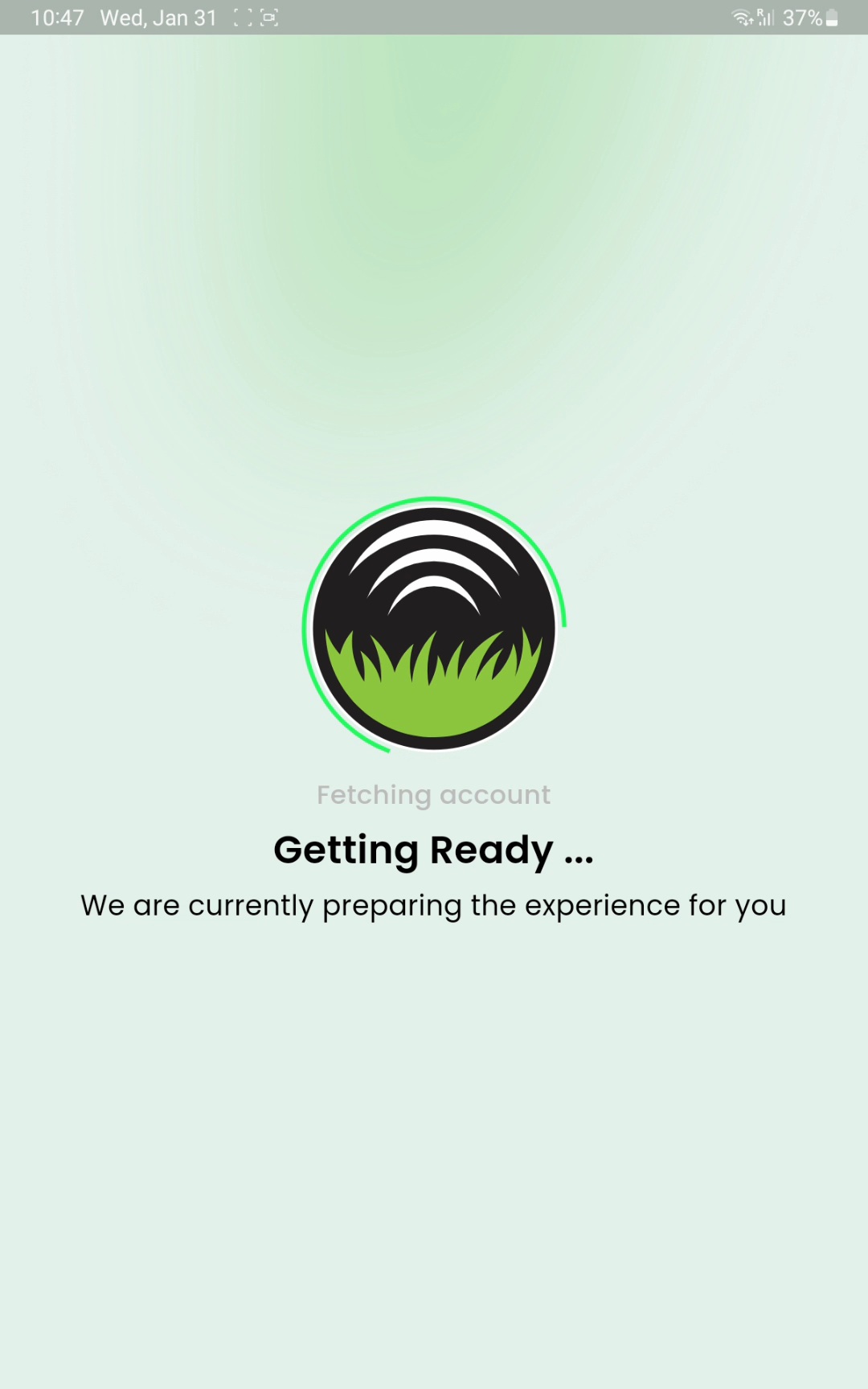 3.2 Fetching Account | 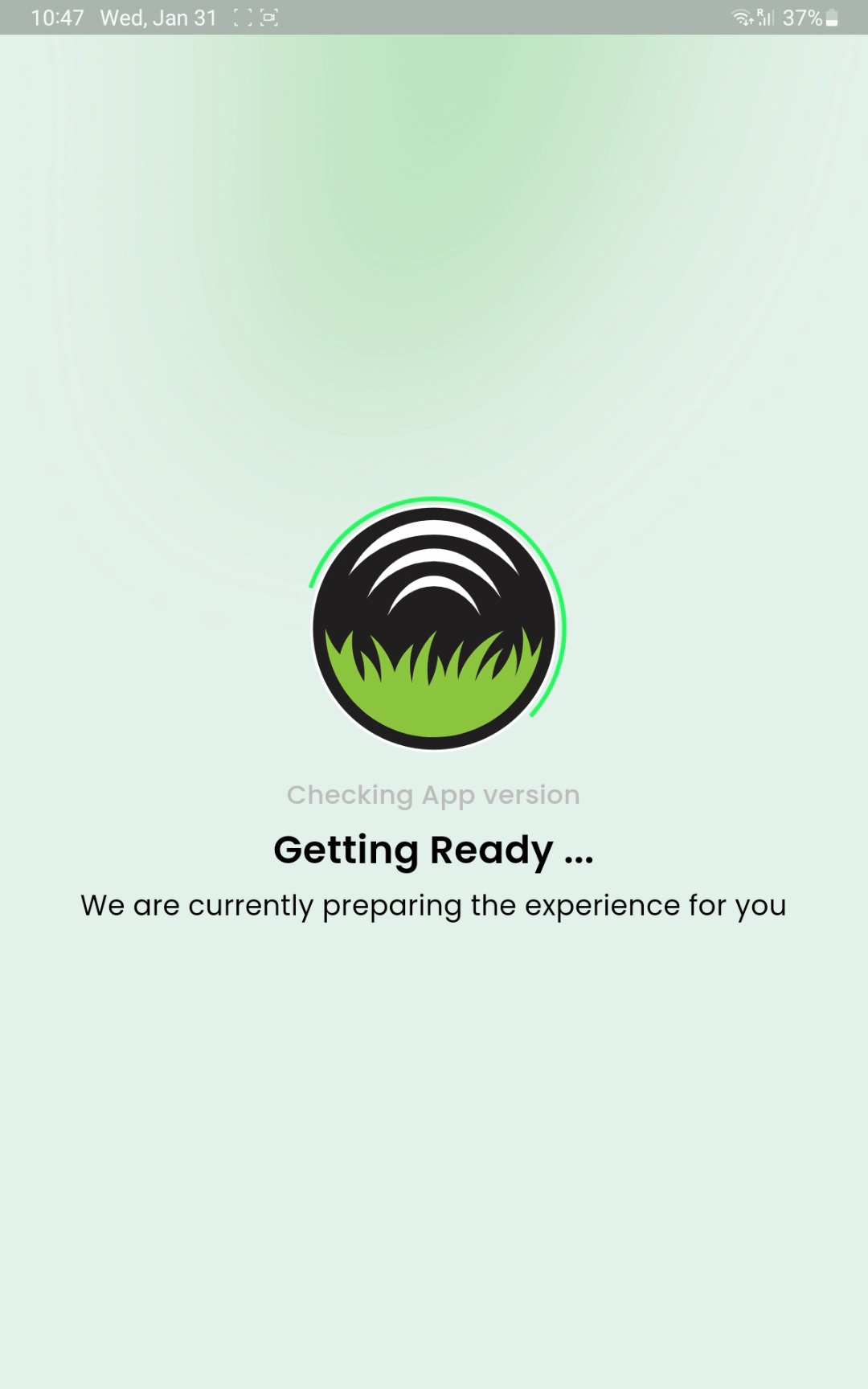 3.2 Checking App Version |
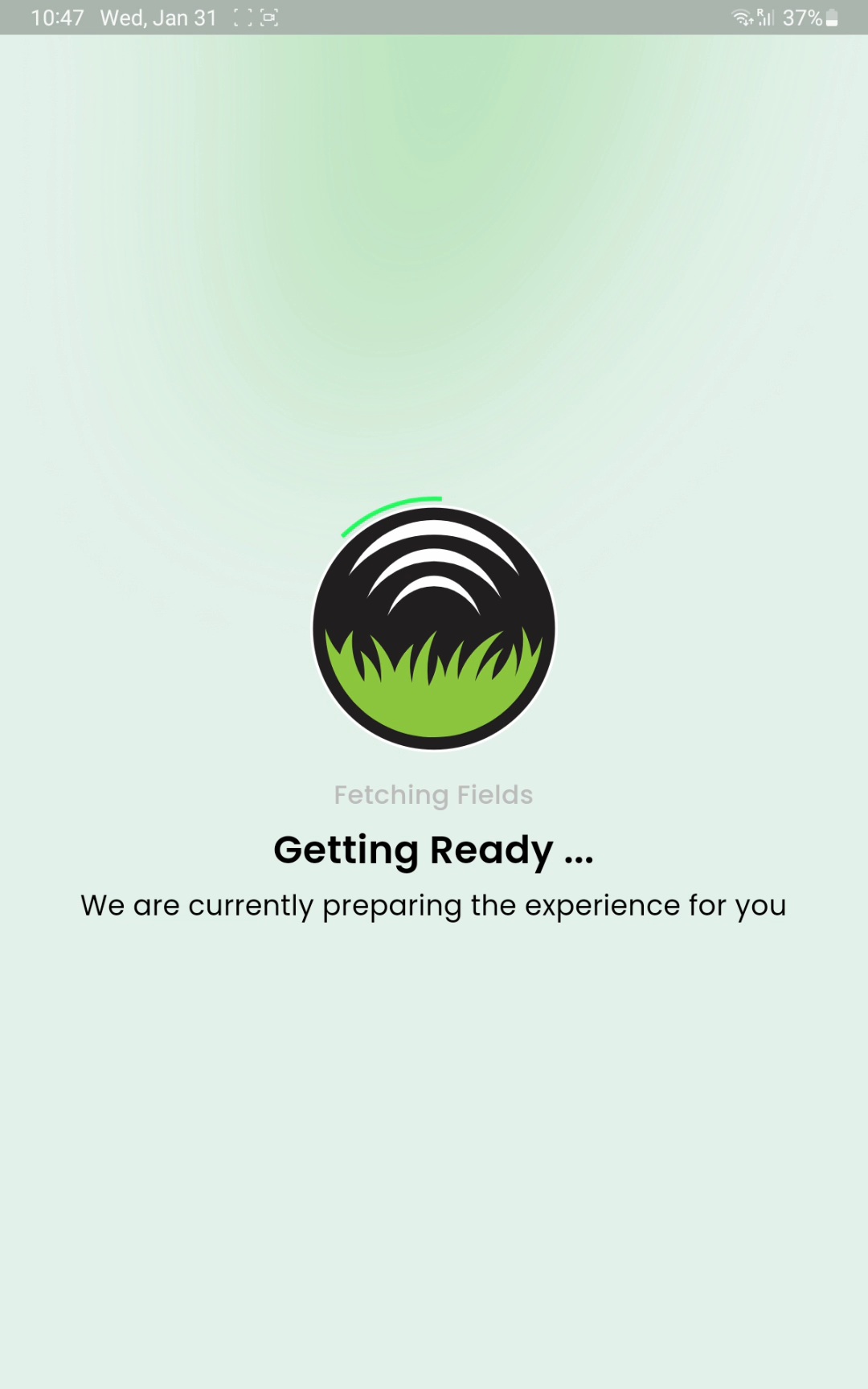 3.3 Fetching Fields | 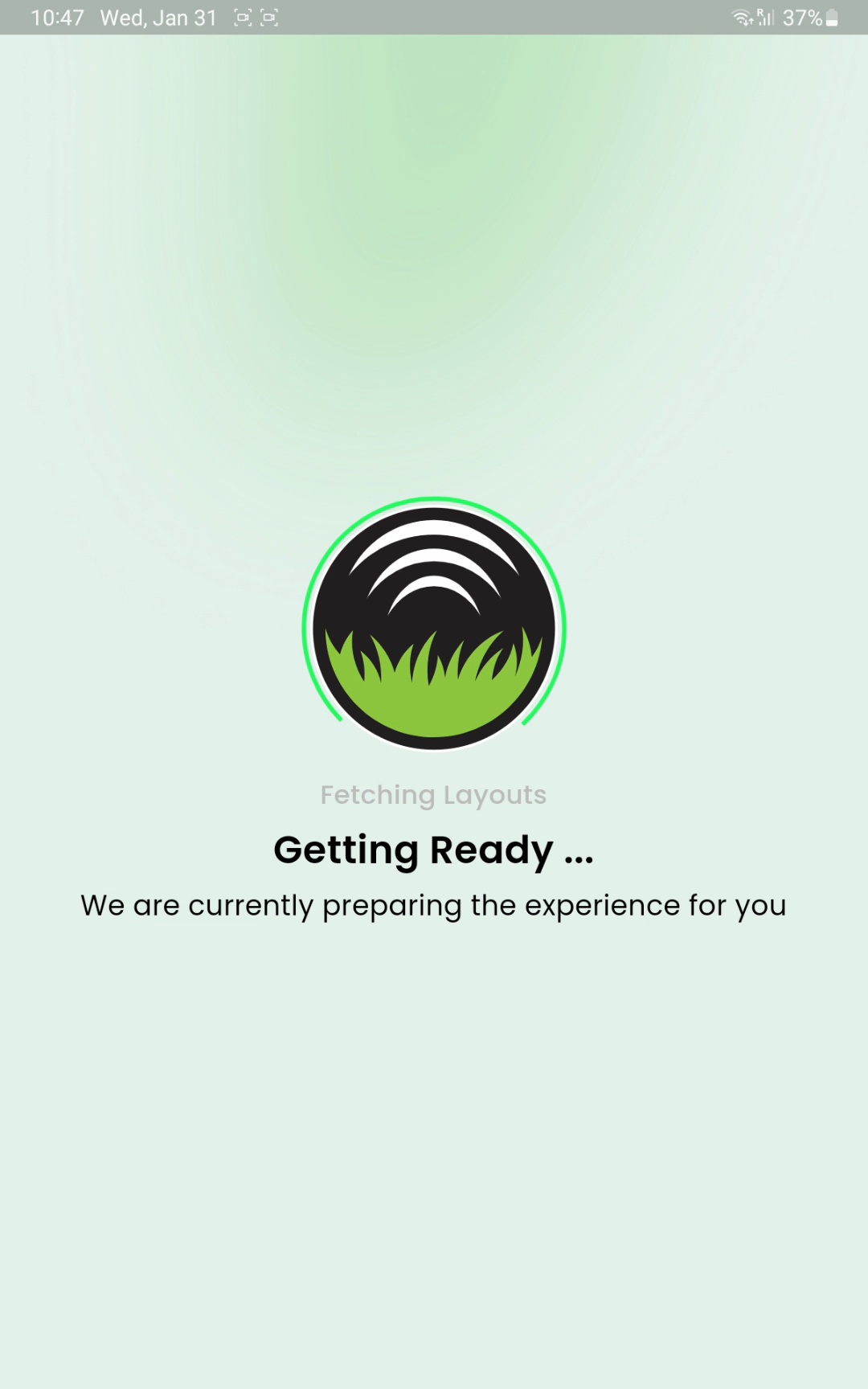 3.4 Fetching Layouts |
After the Turf Tank Control update is complete, the app displays the Release Notes for the new software version.
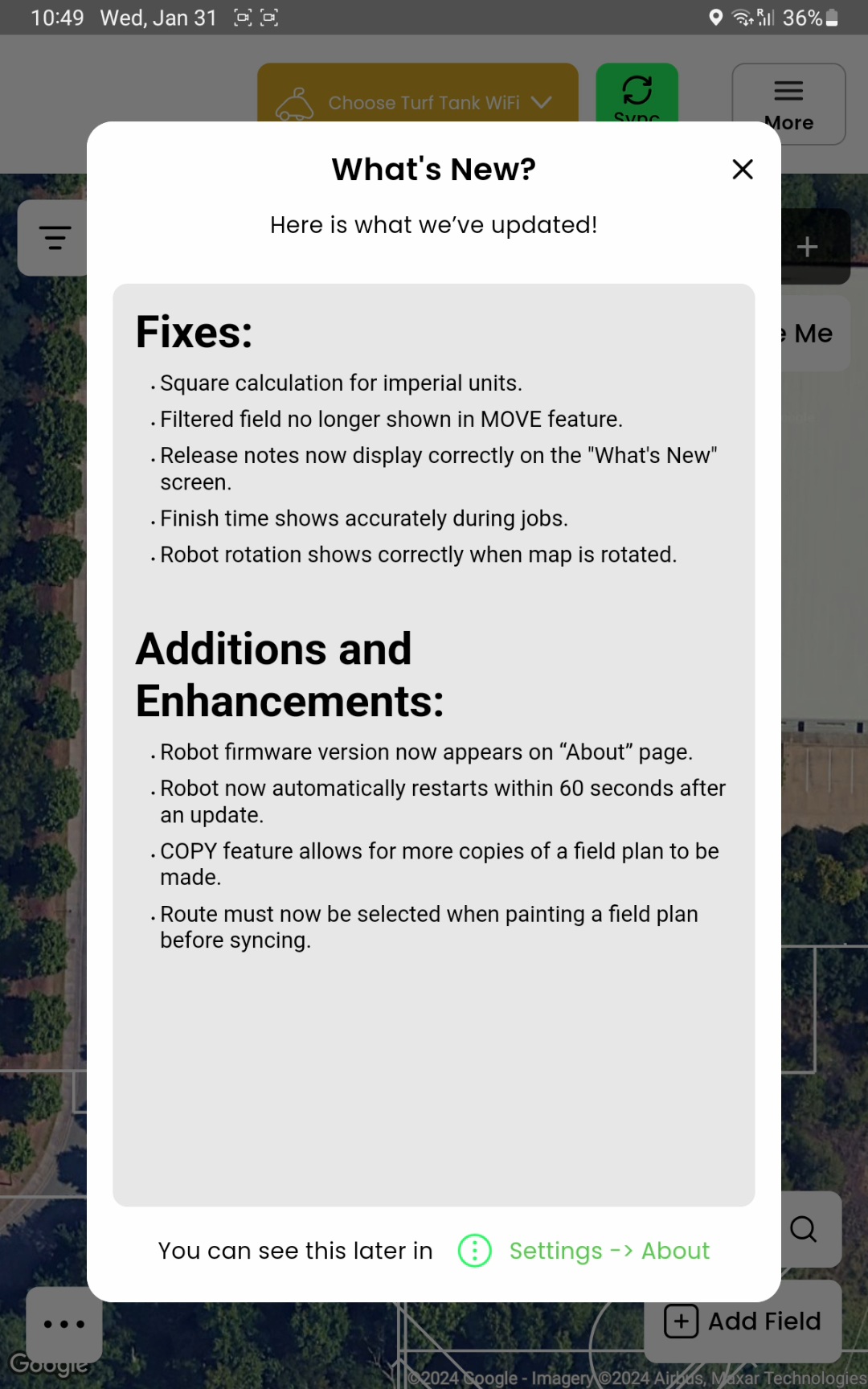
You can view Release Notes at any time in the app's Settings under the ABOUT tab.
If the Software Update Includes a Robot Firmware Update
If new Robot firmware is available, it is automatically downloaded in the background by the tablet AFTER you update the Turf Tank Control app software.

Wait for the download(s) to complete before disconnecting from your strong WiFi source!
If you disconnect before the download(s) is complete, the update will fail and you will not be able to use the Robot until you have fully downloaded the firmware update files.
| |
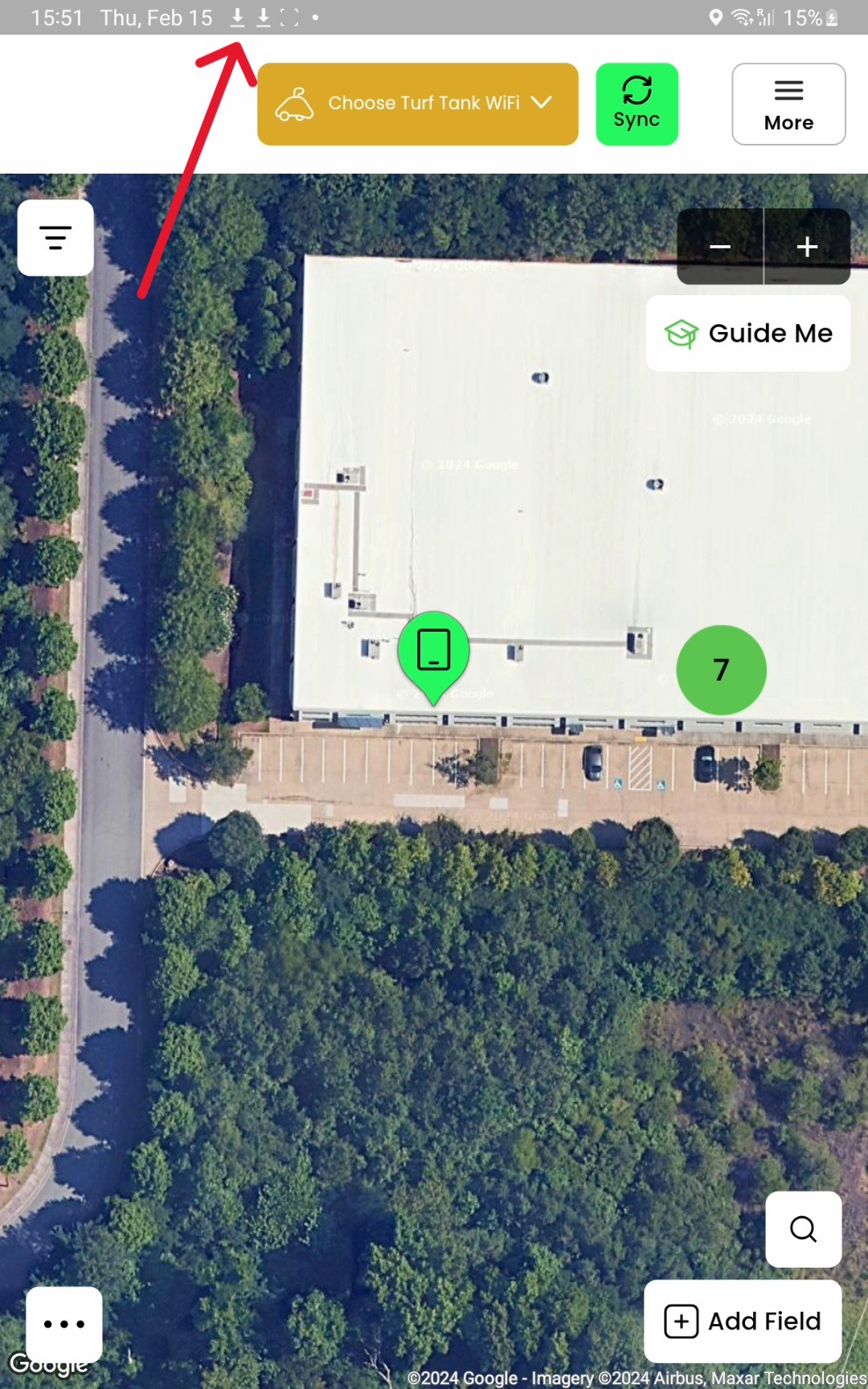 1.a Firmware download icon shown in notification bar. | 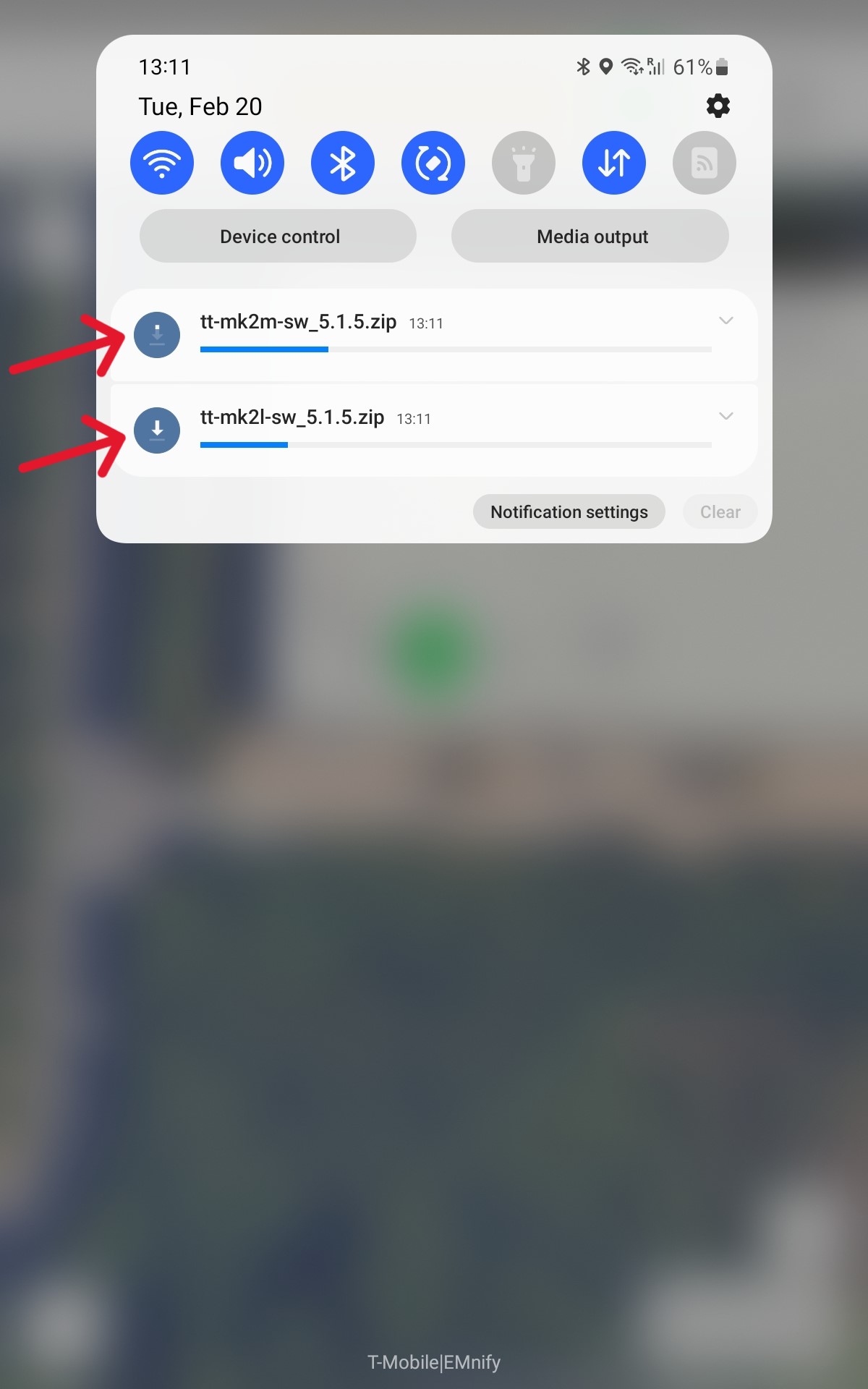 1.b Firmware download progress shown in notification tray. |
| |
| |
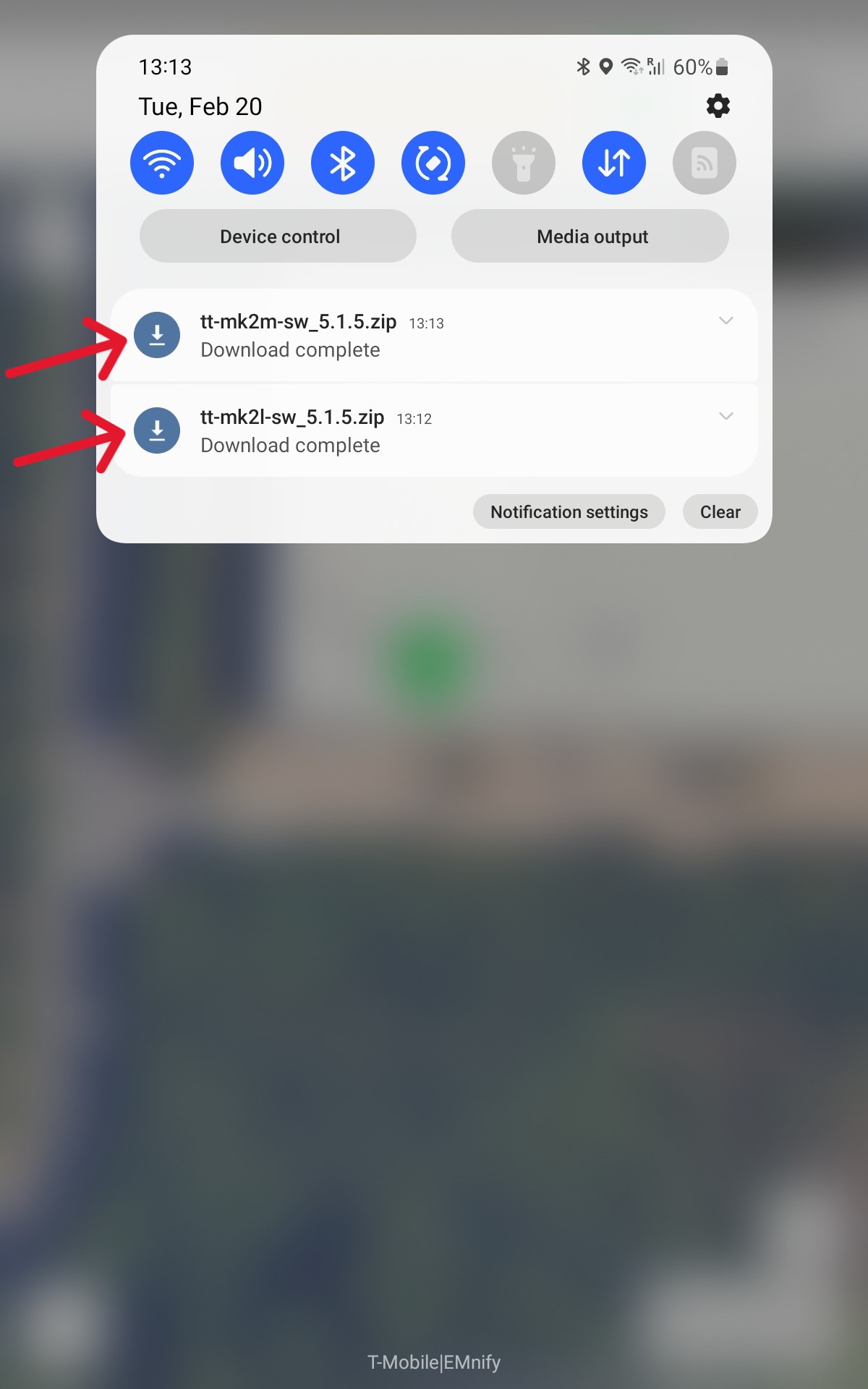 3.a Firmware download complete shown in notification tray. | |
The Turf Tank Control App must be connected to the organization’s Robot(s) to install the firmware update.
The firmware installation will begin the next time the App is connected to a Robot.
For complete information on how to install the Robot firmware update, please see: Update Robot Firmware: Turf Tank Two and Lite