
Update Robot Firmware: Turf Tank Two and Lite
The Turf Tank Control app must be updated before the Robot firmware can be installed. Please see
Successfully Update Turf Tank Software for that process.
You should always turn on the tablet and log into your Turf Tank Control account with a strong WiFi signal, such as before you leave your office or shop.
You can then see if an update is available and can successfully download it with no issues before you head out into the field with the Robot.

Update the Turf Tank Control app when prompted to do so. Once the app update is complete, you can install and update the Robot firmware.

Keep the Tablet screen active by touching it every so often throughout the firmware update process.
Firmware Installation
Power on the Robot.
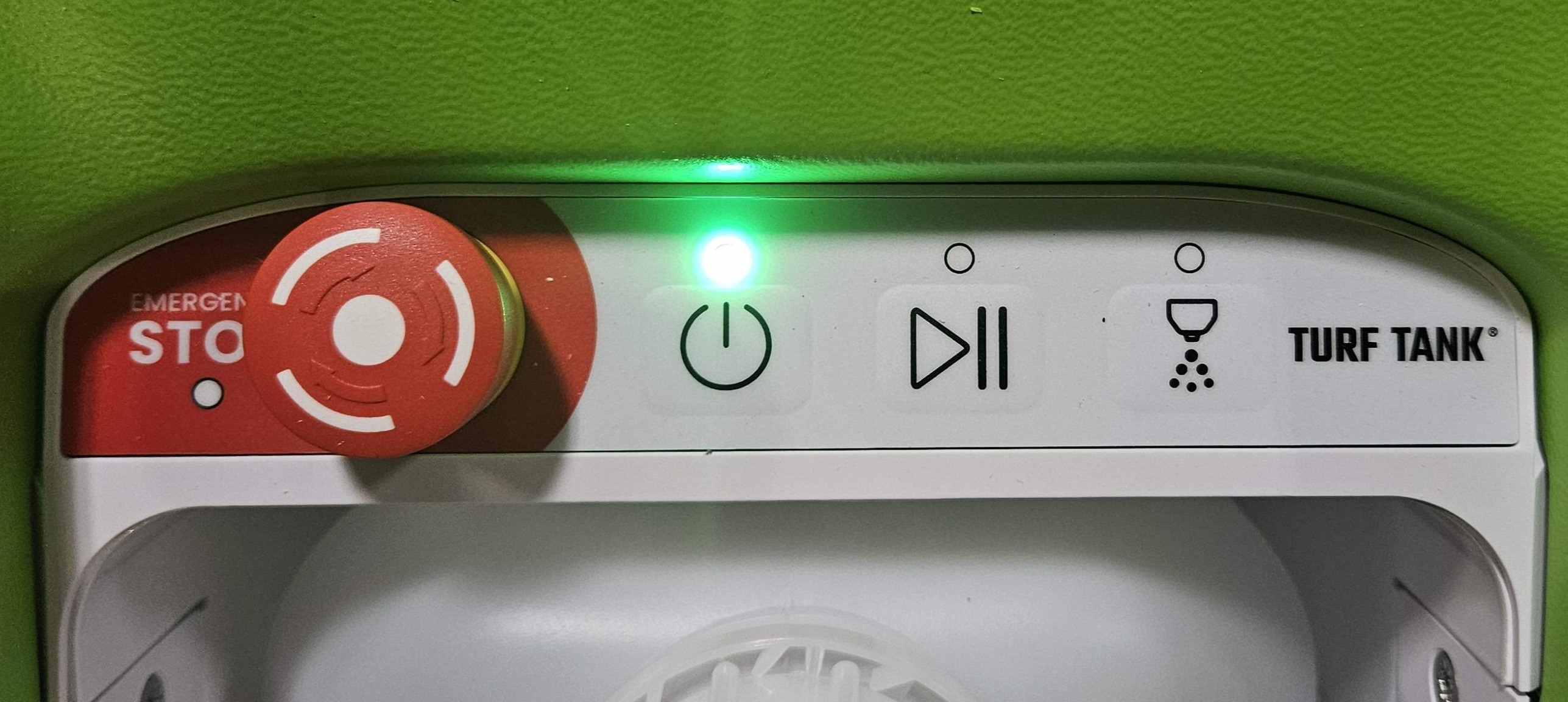
Wait for the steady green power-button LED.
Connect the tablet to the Robot WiFi and place it in close proximity to the Robot for the duration of the update process.
Turf Tank Control will prompt that a Robot firmware update is available.
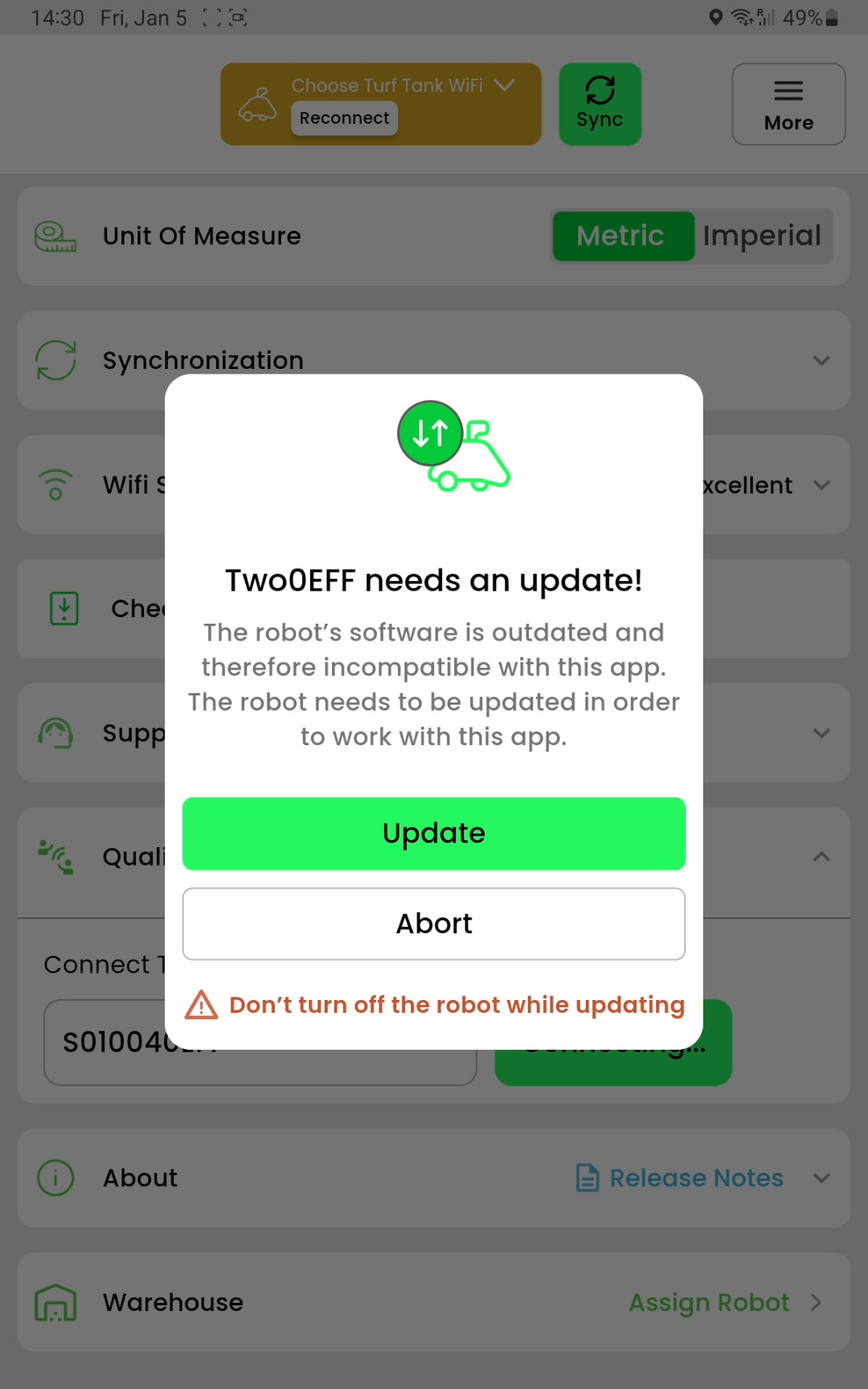
Select
UPDATEThe firmware file will be transferred to the robot*, decompressed, and installed. (*See Error Number 1 below.)
The power-button LED will flash yellow.
The power-button LED will change to solid yellow, then flash green as the Robot reboots.
The update is complete once the Robot has restarted and the power-button LED shows solid green.
Success! The Robot WiFi is ready to connect to the tablet.
Troubleshooting Error Messages During Firmware Installation
Error Number 1*Error: “Something Went Wrong” message in the red ribbon at the bottom of the screen IMMEDIATELY after tapping Issue: There is a file mismatch. |
[Image?] |
Solution: Contact Support to walk you through fixing the issue. North America: 770-818-6020 See Global Support Phone Numbers for other regions. |
Error Number 2Error: “Decompression Failed” message in the red ribbon at the bottom of the screen during the file decompression stage. Issue: An error likely occurred during the download, earlier in the update process. |
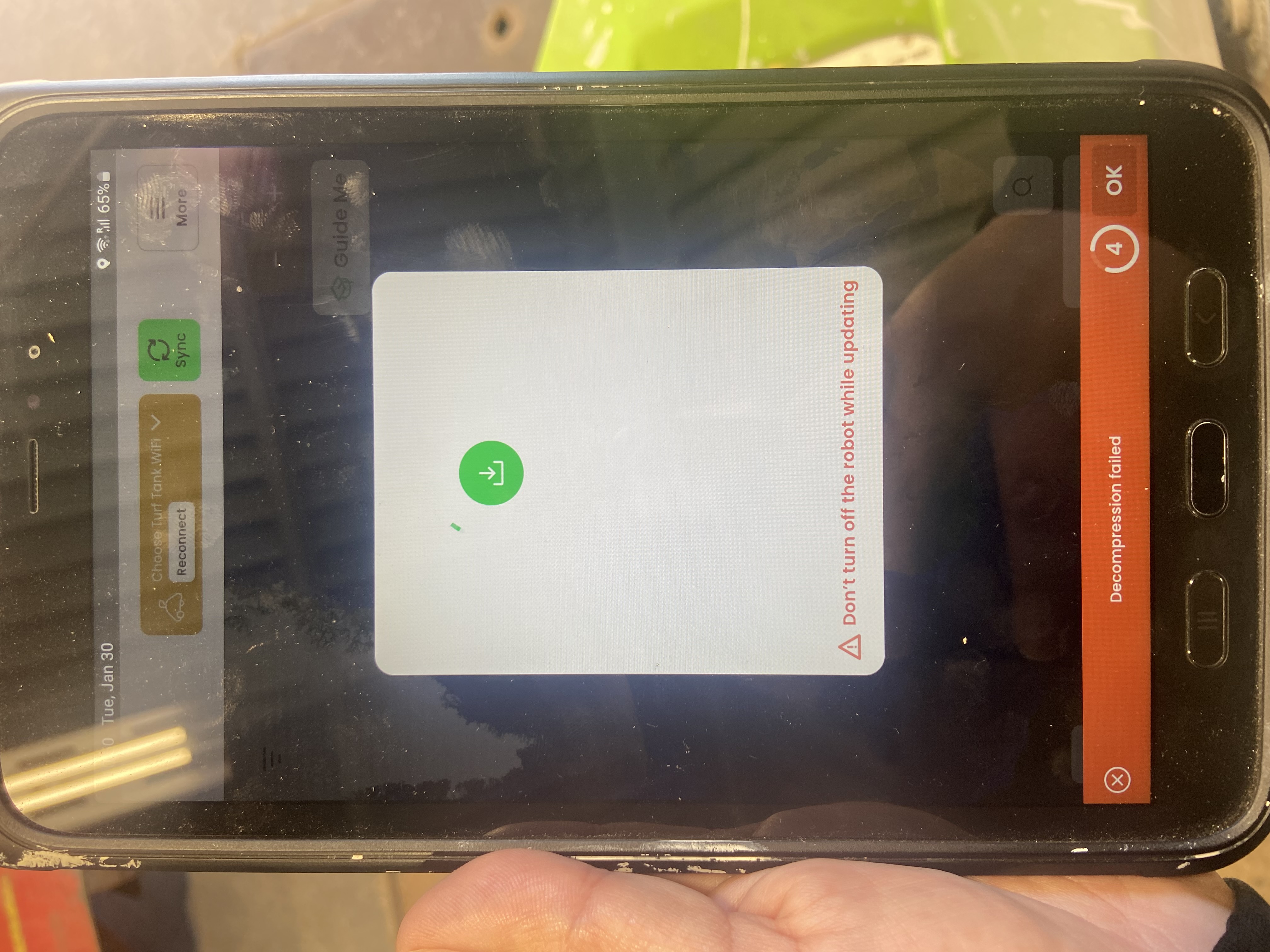 |
Cause: Likely a weak WiFi signal during the download. Solution: Clear the app data and download the Robot firmware update package again.
|
Error Number 3Error: “Something went wrong” error message in the red ribbon at the bottom of the screen during the update installation. Issue: The Robot WiFi is disconnected from the app. |
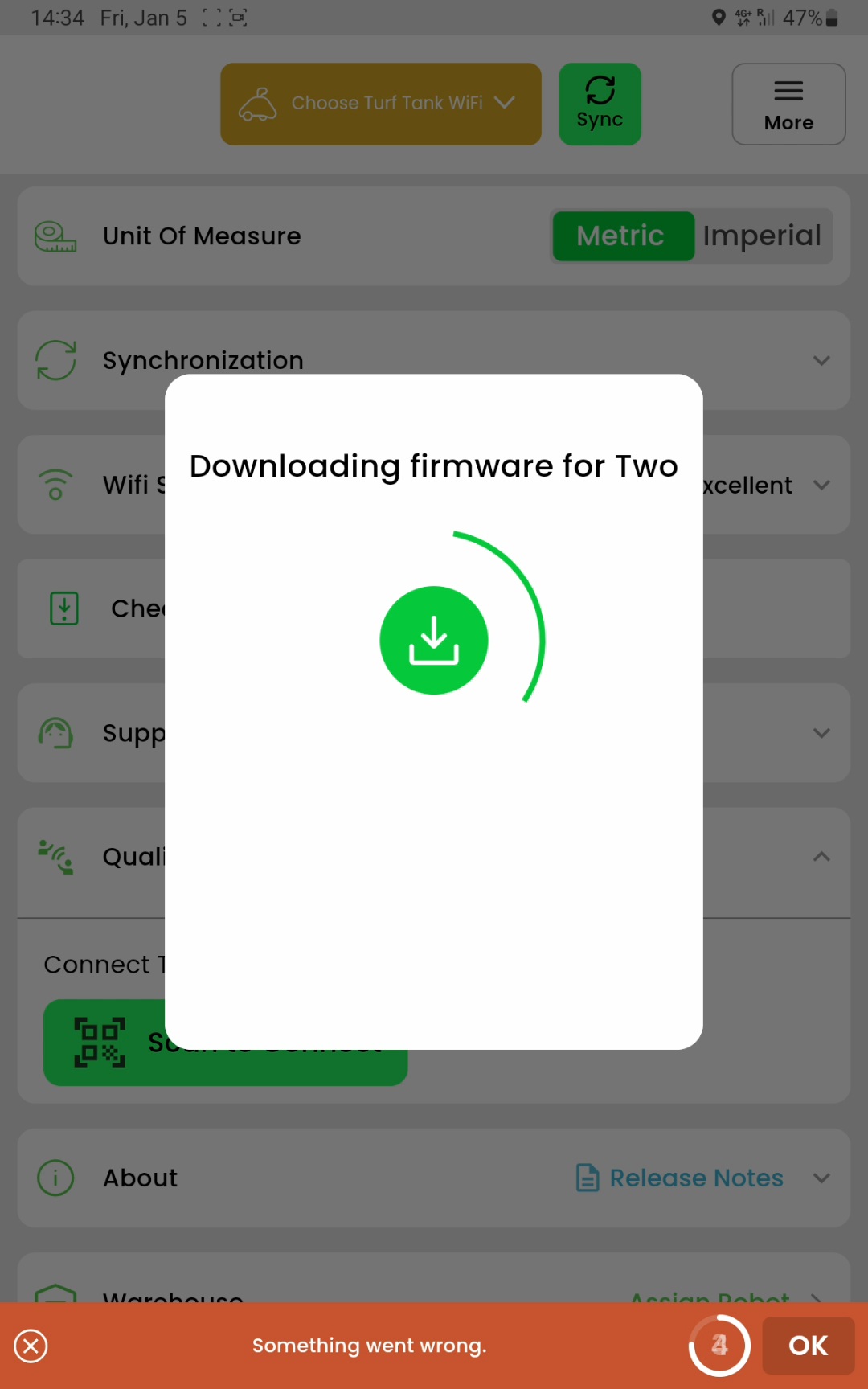 |
Cause: The Robot WiFi has turned off because the Robot is installing the update and rebooting. Solution: You don’t need to do anything; this is expected. The error message will disappear and the power-button LED on the control panel will flash yellow as the update continues. You can restore the WiFi connection once the Robot has completed the update and fully rebooted. |